


How to Use TiviMate
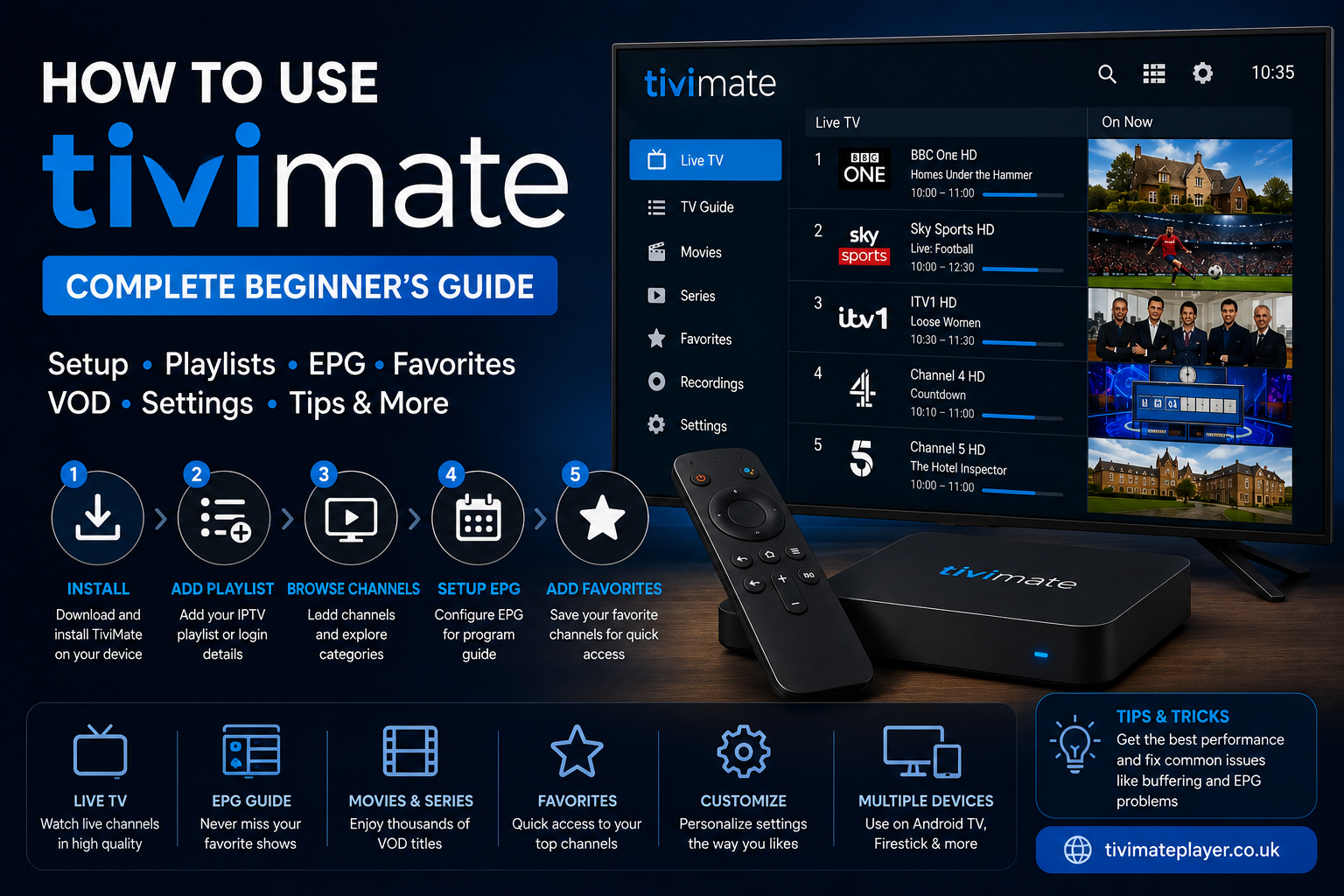
If you have installed TiviMate but are not sure what to do next, you are not alone.
Many first-time users open TiviMate and immediately see options for playlists, channels, TV guides, settings, and other features without knowing how everything fits together.
The good news is that the basic setup is straightforward once you understand how TiviMate works.
TiviMate is an IPTV player. It provides the interface for organizing and playing compatible IPTV content, but it does not supply the channels itself. You need a compatible and authorized IPTV playlist or service to use with the player.
This guide explains how to use TiviMate from start to finish, including installing the application, adding an IPTV playlist, configuring EPG, organizing channels, using Favorites, watching VOD, troubleshooting buffering, and getting the most from TiviMate Premium.
What Is TiviMate?
TiviMate is an IPTV player designed primarily for Android TV and compatible streaming devices.
It allows you to organize IPTV content into a television-style interface rather than manually opening individual streams.
Depending on your IPTV source, TiviMate can display:
- Live TV channels
- Sports
- News
- Movies
- TV series
- Video-on-demand content
- Channel categories
- Electronic Program Guide (EPG)
- Favorites
- Multiple playlists
The important distinction is that TiviMate is the player, not the content provider.
Your IPTV service or playlist supplies the streams, while TiviMate provides the interface through which you access them.
A typical setup looks like this:
Internet → Streaming Device → TiviMate → IPTV Playlist → Live TV/VOD
Once you understand this, most TiviMate setup and troubleshooting becomes much easier.
What Do You Need to Use TiviMate?
Before opening TiviMate, you need a few basic things.
1. A Compatible Device
TiviMate is primarily designed for compatible Android TV environments and related streaming hardware.
Depending on your setup, you may be using:
- Android TV
- Fire TV/Firestick
- Chromecast with Google TV
- NVIDIA Shield
- Another compatible Android-based device
We have separate guides for different devices, including TiviMate Firestick installation and installing TiviMate on Android TV.
2. TiviMate Installed
You need the application installed before you can configure your IPTV source.
If you have not installed it yet, see our TiviMate IPTV Player download guide.
3. An IPTV Playlist or Compatible Service
TiviMate does not automatically provide channels.
You need a compatible IPTV source that you are legally authorized to access.
Depending on the service, you may receive:
- M3U URL
- M3U playlist
- Server URL
- Username
- Password
- EPG URL
Keep these details available before starting the setup.
4. Internet Connection
Because IPTV streams are delivered over the internet, you need a stable connection.
A fast connection is useful, but stability also matters.
How to Use TiviMate for the First Time
When you first launch TiviMate, the most important task is adding your IPTV playlist.
Without a playlist or compatible content source, there may be little or no content available to watch.
The general setup process is:
Install TiviMate → Add Playlist → Load Channels → Configure EPG → Organize Favorites → Start Watching
Let's go through each stage.
Step 1: Open TiviMate
Launch TiviMate on your compatible streaming device.
The first screen may ask you to add a playlist.
Select the appropriate option to begin configuring your IPTV source.
The exact appearance can vary depending on the version of the application and your device.
Step 2: Add Your IPTV Playlist
One of the most common ways to use TiviMate is with an M3U playlist.
Your IPTV provider may give you an M3U URL.
An M3U URL is essentially a web address that points to your playlist.
You enter the URL into TiviMate, and the application retrieves the available channel information.
If you need detailed instructions, follow our guide on how to add a playlist to TiviMate.
What Does an M3U Playlist Contain?
An M3U playlist can contain information about:
- Channel names
- Stream URLs
- Channel groups
- Logos
- Other metadata
TiviMate reads this information and presents it in a more convenient television interface.
Step 3: Enter Your Playlist Information
If your provider has supplied an M3U URL, enter it exactly as provided.
Be particularly careful when entering the address.
A single missing character can prevent the playlist from loading.
If your provider uses another supported login method, select the appropriate option and enter the credentials they supplied.
Do not use credentials or streams from unauthorized sources.
Step 4: Wait for the Playlist to Load
After entering your information, TiviMate will attempt to load the playlist.
The amount of time this takes depends on factors such as:
- Playlist size
- Internet connection
- Provider server performance
- Number of channels
- Device performance
A very large playlist may take longer to process.
Once successfully loaded, your channel categories should become available.
Step 5: Browse Your Channels
After the playlist has loaded, you can navigate through the available channel categories.
Depending on your IPTV source, categories could include:
- Entertainment
- News
- Sports
- Movies
- Kids
- Documentary
- International
- Regional channels
Use your remote to move between categories and channels.
Select a channel to begin playback.
The available categories depend entirely on the IPTV source.
How to Change Channels in TiviMate
One of the advantages of using a television-focused IPTV player is that channel navigation can feel similar to traditional television.
While watching a channel, use your remote to navigate to another channel.
You can also browse the channel list and select another stream.
If your playlist contains hundreds or thousands of channels, Favorites and categories become particularly useful.
How to Add Channels to Favorites
If you have a large IPTV playlist, you probably do not watch every channel.
Favorites allow you to create a smaller list of the channels you use most often.
For example, you might add your:
- Favorite news channels
- Favorite sports channels
- Entertainment channels
- Movie channels
- International channels
This saves time because you do not have to search through the entire playlist every time you want to watch something.
Why Favorites Matter
Imagine having 5,000 channels in a playlist.
You probably watch fewer than 50 of them regularly.
Instead of navigating through thousands of entries, you can create a personal Favorites list containing only the channels you actually use.
This is one of the simplest ways to improve the TiviMate experience.
How to Use the TiviMate EPG
EPG stands for Electronic Program Guide.
It provides information about what is currently playing and what is scheduled next.
Instead of seeing only:
BBC One HD
you may also see:
Current Programme
10:00–11:00
Next Programme
11:00–12:00
The exact information depends on the EPG data supplied by your IPTV source.
Why Is EPG Useful?
EPG makes IPTV feel much more like traditional television.
You can browse upcoming programming without opening every channel individually.
It can be especially useful for:
- Live sports
- News
- Entertainment
- Documentaries
- Scheduled programs
What If the TiviMate EPG Is Not Working?
EPG problems are extremely common.
You may find that:
- No guide information appears
- Some channels have information while others do not
- Program times are incorrect
- The guide stops updating
- Old information remains visible
This does not automatically mean that TiviMate itself is broken.
The EPG source may be outdated or incorrectly configured.
Possible causes include:
- Incorrect EPG URL
- Provider-side changes
- Incorrect channel mapping
- Expired EPG data
- Time-zone settings
- Temporary server problems
If your guide is not updating, see our TiviMate EPG not updating fixes guide.
How to Watch Movies and VOD in TiviMate
Some IPTV services provide video-on-demand content in addition to live television.
If your IPTV source supports VOD, TiviMate may organize available content into sections such as:
- Movies
- TV series
- Genres
- Recently added
- Languages
The exact structure depends on your IPTV service.
Remember that TiviMate does not independently provide the movies or series.
It displays the VOD information supplied by your connected IPTV source.
How to Use TiviMate for Sports
TiviMate can be particularly convenient for users who watch live sports through a compatible IPTV source.
Sports channels can be organized into a dedicated category or Favorites list.
For example, you can create a Favorites selection containing the sports channels you regularly watch.
This means that when a match is about to start, you do not have to search through your entire playlist.
The quality of the sports stream depends on your IPTV source, internet connection, device, and network.
TiviMate itself cannot guarantee that a live stream will remain stable.
How to Use TiviMate Premium
TiviMate offers premium functionality for users who want additional features beyond the basic experience.
If you are considering upgrading, you can review our TiviMate Premium page for current package information.
Our available options currently include packages starting from £11.99 per month, with an annual option of £58.50.
Premium should not be confused with an IPTV subscription.
TiviMate Premium
Provides premium player functionality.
IPTV Subscription
Provides the actual IPTV content or streams.
You may need both if you want to use premium features with a separate IPTV service.
What Is TiviMate Companion?
TiviMate Companion is associated with managing TiviMate Premium purchases and accounts.
It is separate from the main player you use to watch IPTV.
If you are confused about the difference between TiviMate, Premium, and Companion, our dedicated TiviMate Companion guide explains how they relate to one another.
The easiest way to remember the distinction is:
TiviMate Player = Watch and manage IPTV
TiviMate Premium = Additional player functionality
TiviMate Companion = Premium/account management
How to Use TiviMate on Firestick
Firestick is a popular device for IPTV setups.
Once TiviMate has been installed, the general process is:
- Open TiviMate.
- Add your IPTV playlist.
- Enter the required information.
- Wait for the playlist to load.
- Configure EPG.
- Add your favorite channels.
- Start watching.
For complete installation instructions, see our TiviMate Firestick guide.
How to Use TiviMate on Android TV
Android TV is one of the primary environments associated with TiviMate.
After installing the application:
- Launch TiviMate.
- Add your playlist.
- Enter your IPTV information.
- Wait for the channels to load.
- Configure your EPG.
- Organize Favorites.
- Begin watching.
If you have not installed TiviMate yet, our Android TV installation guide walks through the process.
How to Use TiviMate on Chromecast With Google TV
Chromecast with Google TV can also be used for compatible IPTV setups.
The overall workflow remains similar:
Install → Add Playlist → Configure EPG → Organize Channels → Watch
If you need device-specific instructions, see our TiviMate Chromecast and Google TV guide.
How to Use TiviMate on NVIDIA Shield
NVIDIA Shield provides a powerful Android TV environment suitable for demanding streaming applications.
Once TiviMate is installed, you can configure your IPTV source in the same basic way.
If you use an NVIDIA Shield, our TiviMate NVIDIA Shield installation guide provides additional information.
How to Use Multiple IPTV Playlists
If you have access to multiple legitimate IPTV playlists, you may want to keep them organized rather than mixing everything together.
Multiple playlists can be useful when you have different sources for different purposes.
For example:
- Different regions
- Different content collections
- Personal playlists
- Separate household sources
The exact number and management options available depend on your version of TiviMate.
How to Improve TiviMate Performance
If TiviMate feels slow or streams are not playing smoothly, do not immediately assume that you need a new device.
Start with the basics.
Check Your Internet
Run a speed test and check whether other devices on the same network are consuming bandwidth.
Use Ethernet Where Possible
A wired connection can provide a more consistent connection than Wi-Fi.
Restart Your Device
A simple restart can clear temporary problems.
Keep Your Software Updated
Make sure your device and relevant applications are kept up to date.
Reduce Unnecessary Background Activity
Close applications that are consuming significant resources.
Why Is TiviMate Buffering?
Buffering is one of the most common complaints among IPTV users.
However, buffering can have many causes.
Poor Wi-Fi
Your device may have a weak connection to the router.
Internet Instability
Your connection may be fluctuating even if your advertised internet speed is high.
IPTV Server Problems
The stream source may be experiencing high traffic or technical problems.
Device Limitations
Older devices can struggle with demanding streams.
Individual Stream Problems
If one channel buffers but dozens of others work normally, the problem may be specific to that stream.
How to Diagnose Buffering
Try several channels.
If everything buffers, investigate your network and device.
If only certain channels buffer, investigate the source or individual streams.
You can also follow our TiviMate buffering fix guide for additional troubleshooting steps.
Does TiviMate Premium Fix Buffering?
No guarantee can be made that upgrading to Premium will eliminate buffering.
This is an important distinction.
TiviMate Premium upgrades the player experience. It does not control:
- Your Wi-Fi
- Your internet provider
- IPTV server capacity
- Individual stream quality
- Network congestion
If the underlying IPTV source is unreliable, changing the player may not solve the problem.
Similarly, if your Wi-Fi signal is weak, the problem is likely with your network rather than your TiviMate license.
What to Do If Your IPTV Playlist Stops Working
If a playlist that previously worked suddenly stops loading, check the following.
1. Check Your Internet
Make sure the device is connected.
2. Check Your Playlist
Verify that the playlist URL is still correct.
3. Check Your Credentials
If your service uses a username and password, confirm that they have not expired.
4. Check Your Subscription
Your IPTV account may have expired.
5. Check the IPTV Server
The provider's server may be temporarily unavailable.
6. Restart TiviMate
Close and reopen the application.
7. Test Another Source
If you have another authorized playlist, testing it can help determine whether the problem is specific to your original source.
What to Do When TiviMate Shows an Error
Error messages can have several causes.
Before reinstalling everything, check:
- Internet connection
- Playlist URL
- Username
- Password
- Server address
- Subscription status
- Device compatibility
- Application configuration
If you are dealing with a specific error, our TiviMate errors fix guide covers common troubleshooting approaches.
How to Get Better Picture Quality in TiviMate
Picture quality depends primarily on the source stream and your hardware.
For the best possible result, make sure you have:
- A capable streaming device
- A suitable television
- Stable internet
- A compatible high-quality stream
- Correct display settings
If your source only provides HD video, changing TiviMate settings cannot turn it into genuine 4K.
For 4K playback, the source itself must provide a compatible 4K stream.
How to Organize a Large TiviMate Playlist
A large playlist can quickly become difficult to navigate.
The best approach is to avoid trying to use every channel.
Start by identifying the content you actually watch.
Then:
- Use channel categories.
- Add regular channels to Favorites.
- Remove or hide unnecessary content where supported.
- Keep different playlists organized.
- Use the EPG to browse scheduled programming.
- Use search when you need a specific channel.
The goal is to turn a huge playlist into a manageable personal TV guide.
How to Use TiviMate Search
If your playlist contains a large number of channels, searching can be considerably faster than manually scrolling.
Search for the channel or content you want, then select the relevant result.
This is particularly useful when your IPTV source contains multiple regions or duplicate channels.
Instead of scrolling through hundreds of entries, searching can take you directly to the relevant result.
TiviMate Remote Control Tips
TiviMate is designed for television environments, so remote navigation is an important part of the experience.
Get familiar with:
- Direction buttons
- Select/OK
- Back
- Menu
- Channel navigation
- Guide access
The exact controls available can vary by device and remote.
Once you learn the basic navigation, moving through large playlists becomes much faster.
Can You Use TiviMate on a Phone?
TiviMate is primarily designed around television-based viewing rather than being a conventional mobile IPTV application.
If you are looking for a mobile IPTV experience, check application compatibility before attempting to install it.
The best experience generally comes from using TiviMate on a compatible television-oriented device.
Is TiviMate Difficult to Use?
For beginners, the application can look complicated initially because it exposes many IPTV-specific options.
Once the basic concepts are understood, the workflow is relatively simple:
Add playlist → Load channels → Configure EPG → Add Favorites → Watch
The more advanced settings are there for users who want greater control over their IPTV setup.
You do not need to configure every option before you can start watching.
Common TiviMate Mistakes Beginners Make
Using the Wrong Playlist URL
Always copy the URL exactly as supplied.
Assuming TiviMate Provides Channels
It does not. You need a compatible IPTV source.
Blaming TiviMate for Every Buffering Problem
Buffering can originate from the network, device, stream, or IPTV server.
Ignoring EPG Configuration
If guide data is supplied separately, it may require additional configuration.
Keeping Thousands of Unused Channels
A massive playlist can make navigation unnecessarily difficult.
Use Favorites and categories to simplify the experience.
Reinstalling the App Too Quickly
Reinstalling TiviMate should not be your first troubleshooting step.
Determine whether the problem is actually related to the application.
How to Get Help With TiviMate
If you are stuck, start by identifying the exact problem.
For example:
“The app won't install.”
This is different from:
“The app opens, but my playlist won't load.”
And that is different again from:
“My playlist works, but the EPG is empty.”
Identifying the specific stage where the problem occurs makes troubleshooting much easier.
Our website has dedicated resources for installation, playlists, EPG problems, buffering, and common TiviMate errors.
You can also review the TiviMate FAQ for answers to frequently asked questions.
Quick TiviMate Setup Checklist
If you want the shortest possible setup process, use this checklist:
Before Starting
- Compatible streaming device
- TiviMate installed
- Authorized IPTV playlist
- IPTV credentials if required
- Stable internet connection
- EPG information if supplied by your provider
Setup
- Open TiviMate
- Add playlist
- Enter credentials
- Wait for channels
- Configure EPG
- Add Favorites
- Test several channels
- Test VOD if available
If Something Goes Wrong
- Check internet
- Check playlist
- Check credentials
- Check subscription
- Test another channel
- Restart device
- Check EPG configuration
- Review the relevant troubleshooting guide
Frequently Asked Questions
What is TiviMate used for?
TiviMate is used to organize and play compatible IPTV streams and playlists on supported devices.
Does TiviMate provide IPTV channels?
No. TiviMate is an IPTV player. You need a compatible and authorized IPTV source to provide the actual content.
How do I add IPTV to TiviMate?
Open TiviMate, select the playlist option, and enter the M3U URL or other supported credentials supplied by your IPTV provider.
How do I add an M3U playlist to TiviMate?
Use the playlist setup option inside TiviMate and enter the M3U URL supplied by your IPTV source. Make sure the URL is copied exactly.
How do I get EPG on TiviMate?
EPG availability depends on your IPTV source. If your provider supplies EPG data, configure it within TiviMate using the information provided.
Why is my TiviMate EPG not updating?
Possible causes include incorrect EPG settings, outdated guide data, channel mapping problems, provider-side changes, or temporary server issues.
Why is TiviMate buffering?
Buffering can be caused by Wi-Fi, internet instability, device performance, IPTV server issues, or individual stream problems.
Does TiviMate Premium stop buffering?
No. Premium functionality does not guarantee that buffering will disappear. Buffering can originate from your network, device, IPTV source, or individual streams.
What is TiviMate Premium?
TiviMate Premium provides additional functionality for the TiviMate player. It is separate from an IPTV subscription.
What is TiviMate Companion?
TiviMate Companion is associated with managing TiviMate Premium purchases and accounts. It is separate from the main player used for viewing IPTV.
Can I use TiviMate on Firestick?
TiviMate is designed for compatible Android TV environments, and Fire TV compatibility can depend on the specific device and software environment.
Can I use TiviMate on Android TV?
Yes, TiviMate is primarily designed for compatible Android TV environments.
Can TiviMate play 4K?
TiviMate can be used with compatible high-resolution streams, but 4K playback depends on the IPTV source, device, television, network, and codec support.
Can I use multiple IPTV playlists?
Supported versions can provide playlist management functionality for multiple IPTV sources.
Why did my IPTV suddenly stop working?
Check your internet connection, playlist, credentials, subscription status, and IPTV server. The problem may not be caused by TiviMate itself.
Is TiviMate an IPTV subscription?
No. TiviMate is an IPTV player. A separate IPTV source supplies the content.
Final Thoughts
Learning how to use TiviMate becomes much easier once you understand the relationship between the player, your streaming device, your IPTV playlist, and your internet connection.
The basic process is simple:
Install TiviMate → Add an authorized IPTV playlist → Load your channels → Configure EPG → Create Favorites → Start watching.
From there, you can customize the experience by organizing channels, managing multiple playlists, browsing VOD, using the EPG, and upgrading to TiviMate Premium if you need its additional functionality.
If something does not work, avoid immediately assuming that TiviMate is the problem. Check the specific part of the setup that is failing.
If channels will not load, investigate the playlist and credentials.
If only certain channels buffer, investigate those streams.
If everything buffers, check your network and device.
If the EPG is missing, check the guide source and configuration.
If you need installation help, use our device-specific guides. If you are looking for premium functionality, visit our TiviMate Premium page.
And if you are completely new to IPTV, start with the basics rather than changing advanced settings unnecessarily.
Once your playlist is correctly configured, TiviMate can turn a complicated IPTV setup into a much more familiar television-style experience.

 Arabic
 French
 Spanish
 Portuguese
 Deutsch
 Turkish
 Dutch
Dutch
 Italiano
 Russian
 Romaian
 Portuguese (Brazil)
 Greek
Greek
