


Recover Files After Windows Reinstallation on Windows 11 Easily
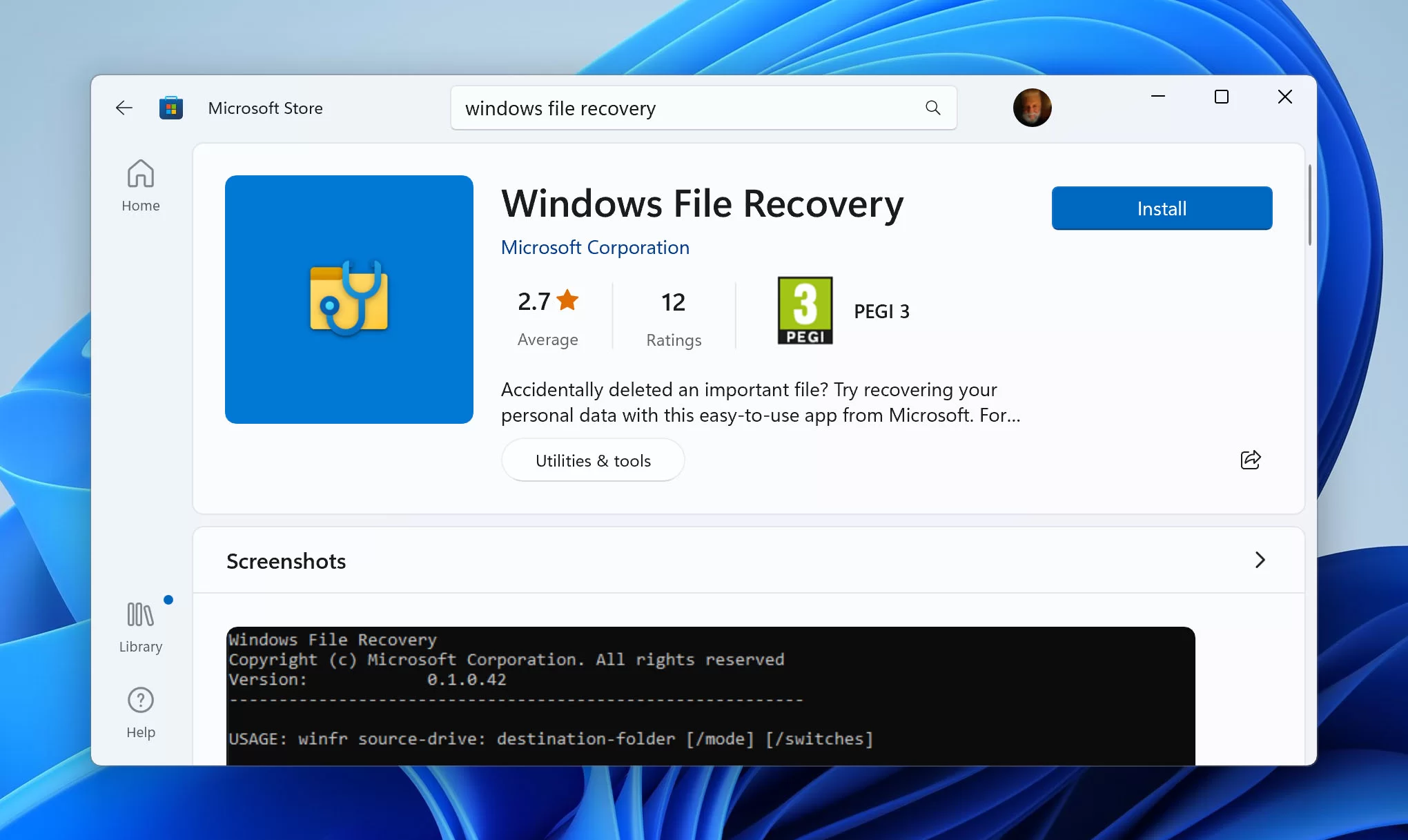
Reinstalling Windows 11 can improve system performance, remove bugs, and fix major software issues. However, many users worry about losing important documents, photos, videos, and other personal data during the process. The good news is that you can still Recover Files After Windows Reinstallation if you act carefully and use the right methods.
In this guide, you will learn practical and effective ways to Recover Files After Windows Reinstallation on Windows 11. Whether you performed a clean installation or reset your PC accidentally, these methods can help you get your data back safely.
Why Files Get Lost After Reinstalling Windows 11
There are several reasons why files disappear after reinstalling Windows 11. Understanding these causes can help you choose the best recovery method.
Common Causes of Data Loss
- Formatting the system drive during installation
- Choosing the wrong partition while reinstalling Windows
- Accidental deletion of personal folders
- Corrupted storage drive
- Interrupted installation process
- Resetting the PC without backup
Sometimes, Windows stores old files in a folder called Windows.old, which can make it easier to Recover Files After Windows Reinstallation without using advanced software.
Check the Windows.old Folder First
Before trying recovery software, check whether Windows created a backup folder automatically.
Steps to Find Windows.old
- Open File Explorer
- Go to the C drive
- Look for a folder named Windows.old
- Open Users folder
- Browse your old account folders
You may find:
- Documents
- Pictures
- Desktop files
- Downloads
- Videos
If your files are available there, copy them immediately to another drive or folder.
Important Note
The Windows.old folder is usually removed automatically after 10 days. If you want to Recover Files After Windows Reinstallation, avoid deleting this folder manually.
Use File History Backup
Windows 11 includes a built-in backup feature called File History. If you enabled it earlier, restoring files becomes simple.
How to Restore Files Using File History
- Connect the backup drive
- Search for File History in Windows search
- Open Restore your files with File History
- Browse old versions of folders
- Select the files you want
- Click Restore
This method works well for recovering:
- Office documents
- Photos
- Music
- Desktop files
File History is one of the safest ways to Recover Files After Windows Reinstallation because it keeps multiple versions of your files.
Recover Files Using OneDrive
Many Windows 11 users sync files automatically with OneDrive. If syncing was enabled before reinstallation, your files may still be available online.
Steps to Check OneDrive
- Open OneDrive
- Sign in with your Microsoft account
- Wait for synchronization
- Check Documents, Desktop, and Pictures folders
You can also log in through the browser and download files manually.
Cloud storage is extremely useful to Recover Files After Windows Reinstallation because files remain safe even if the system drive is formatted.
Use Professional Data Recovery Software
If your files are not available in Windows.old or backups, recovery software may help scan the drive and restore deleted data.
Features of Recovery Software
Good recovery tools can:
- Scan formatted drives
- Recover deleted partitions
- Restore photos and videos
- Recover Office files
- Support SSDs and HDDs
How Recovery Software Works
When Windows is reinstalled, files are not always erased immediately. The system only marks the storage space as reusable. Recovery software scans the drive for recoverable data before it gets overwritten.
Tips Before Using Recovery Software
- Stop using the affected drive immediately
- Avoid installing programs on the same partition
- Save recovered files to another drive
These precautions increase your chances to Recover Files After Windows Reinstallation successfully.
Restore Files from External Backup
Many users store backups on:
- External hard drives
- USB drives
- NAS storage
- Cloud services
If you created backups earlier, restoring files is straightforward.
Steps to Restore Backup Files
- Connect the backup device
- Open backup folders
- Copy files to your new Windows installation
- Organize folders properly
Keeping regular backups is the most reliable way to avoid permanent data loss in the future.
Recover Files from Previous Partitions
Sometimes, reinstalling Windows creates new partitions while old data still exists on another partition.
How to Check Existing Partitions
- Press Windows + X
- Open Disk Management
- Look for additional partitions
- Assign a drive letter if needed
You may discover hidden or inactive partitions containing your old files.
This method can help Recover Files After Windows Reinstallation without needing expensive tools.
Use Command Prompt for Hidden Files
In some cases, files are hidden instead of deleted.
Command to Show Hidden Files
Open Command Prompt as Administrator and type:
attrib -h -r -s /s /d D:\*.*Replace D with your target drive letter.
This command removes hidden and system attributes from files and folders.
Prevent Data Loss During Future Reinstallations
Once you Recover Files After Windows Reinstallation, it is important to protect your data better in the future.
Best Prevention Tips
Create Regular Backups
Use:
- File History
- OneDrive
- External drives
- Backup software
Separate System and Personal Files
Store personal data on a different partition from Windows installation files.
Enable Cloud Synchronization
Cloud services automatically save important files online.
Verify Backup Before Reinstalling
Always confirm that backup files are accessible before formatting or reinstalling Windows.
Signs That Recovery May Be Difficult
Sometimes recovery becomes harder depending on the situation.
Difficult Recovery Scenarios
- Full drive overwrite
- SSD TRIM enabled
- Multiple Windows reinstallations
- Physical drive damage
- Formatted partitions reused heavily
In these cases, professional recovery services may be necessary.
Should You Use Professional Recovery Services
If the lost files are extremely important, professional services can help recover data from damaged or formatted drives.
When to Contact Experts
- Drive makes unusual noises
- SSD is not detected
- Files are business-critical
- Recovery software fails
Professional labs use advanced tools to Recover Files After Windows Reinstallation even from severely damaged storage devices.
Conclusion
Losing files after reinstalling Windows 11 can feel stressful, but recovery is often possible if you act quickly. Start by checking the Windows.old folder, File History backups, OneDrive, and existing partitions. If needed, use reliable recovery software to scan the drive safely.
The best strategy to Recover Files After Windows Reinstallation is prevention through regular backups and cloud synchronization. Keeping copies of important files on external storage or online services can save you from future data loss problems.
With the methods explained above, you have a strong chance of recovering your important documents, photos, videos, and personal files on Windows 11 successfully.

 English
 Arabic
 French
 Spanish
 Portuguese
 Deutsch
 Turkish
 Dutch
Dutch
 Italiano
 Russian
 Portuguese (Brazil)
 Greek
Greek