


How to Recover Deleted Files From a Hard Drive Safely?
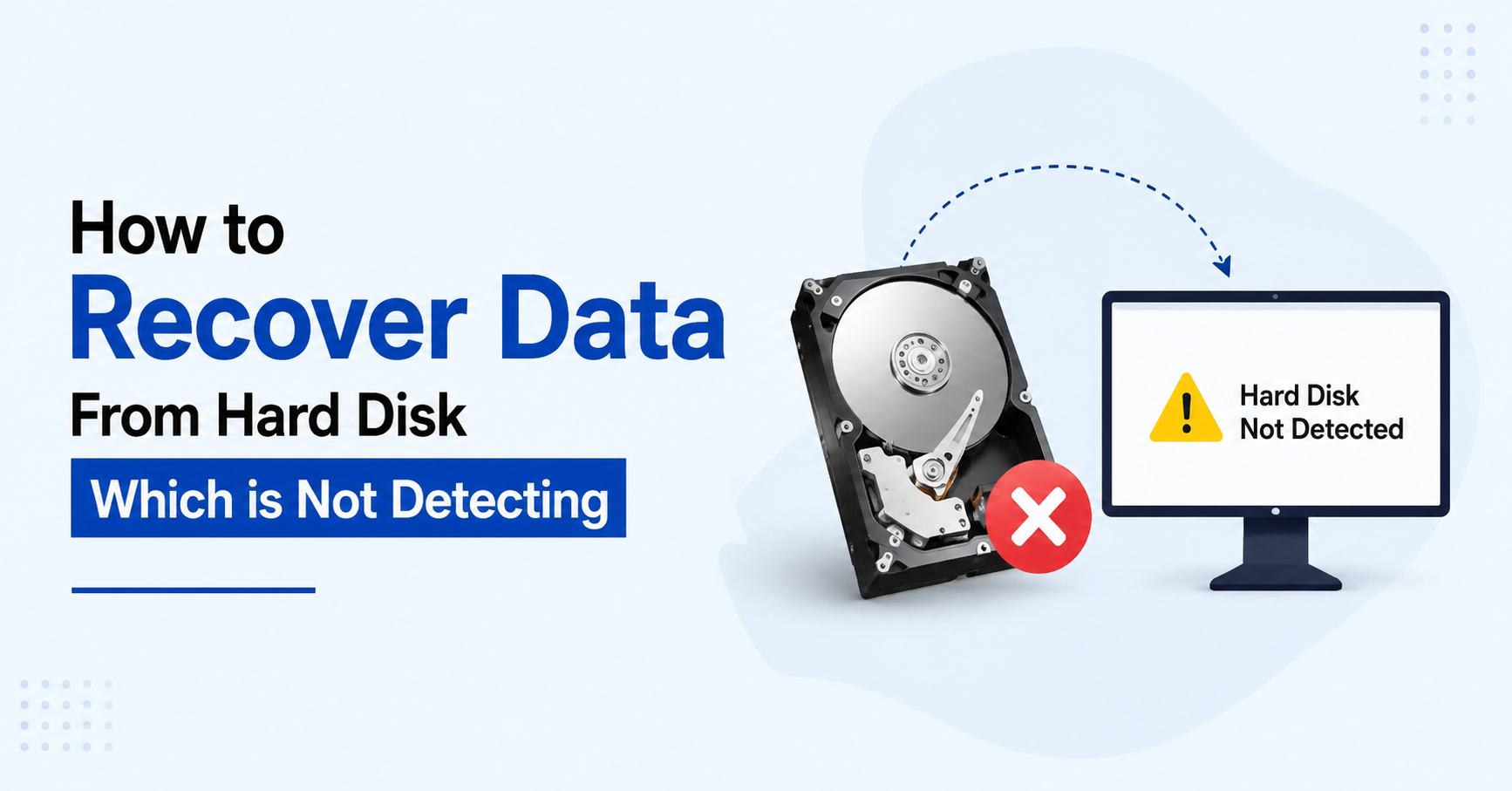
Deleting an important file from a hard drive can be stressful, especially when it contains personal photos, work documents, project files, or business records. The good news is that deleting a file does not always mean the data is immediately gone. In many situations, the space occupied by the deleted file is only marked as available for reuse. If new data has not overwritten that space, there may still be a chance to recover deleted files from a hard drive.
The important part is what you do next. Many recovery attempts fail because users continue saving files to the affected drive, format it, or run repair commands before checking whether the deleted data can still be recovered.
What Happens When You Delete a File From a Hard Drive?
When you delete a file normally, Windows usually does not immediately erase every byte belonging to that file.
Instead, the file's entry is removed from the file system and the space it occupies can become available for new data. The actual data may remain on the disk until something else uses that space. This is why deleted file recovery can sometimes work even after the Recycle Bin has been emptied.
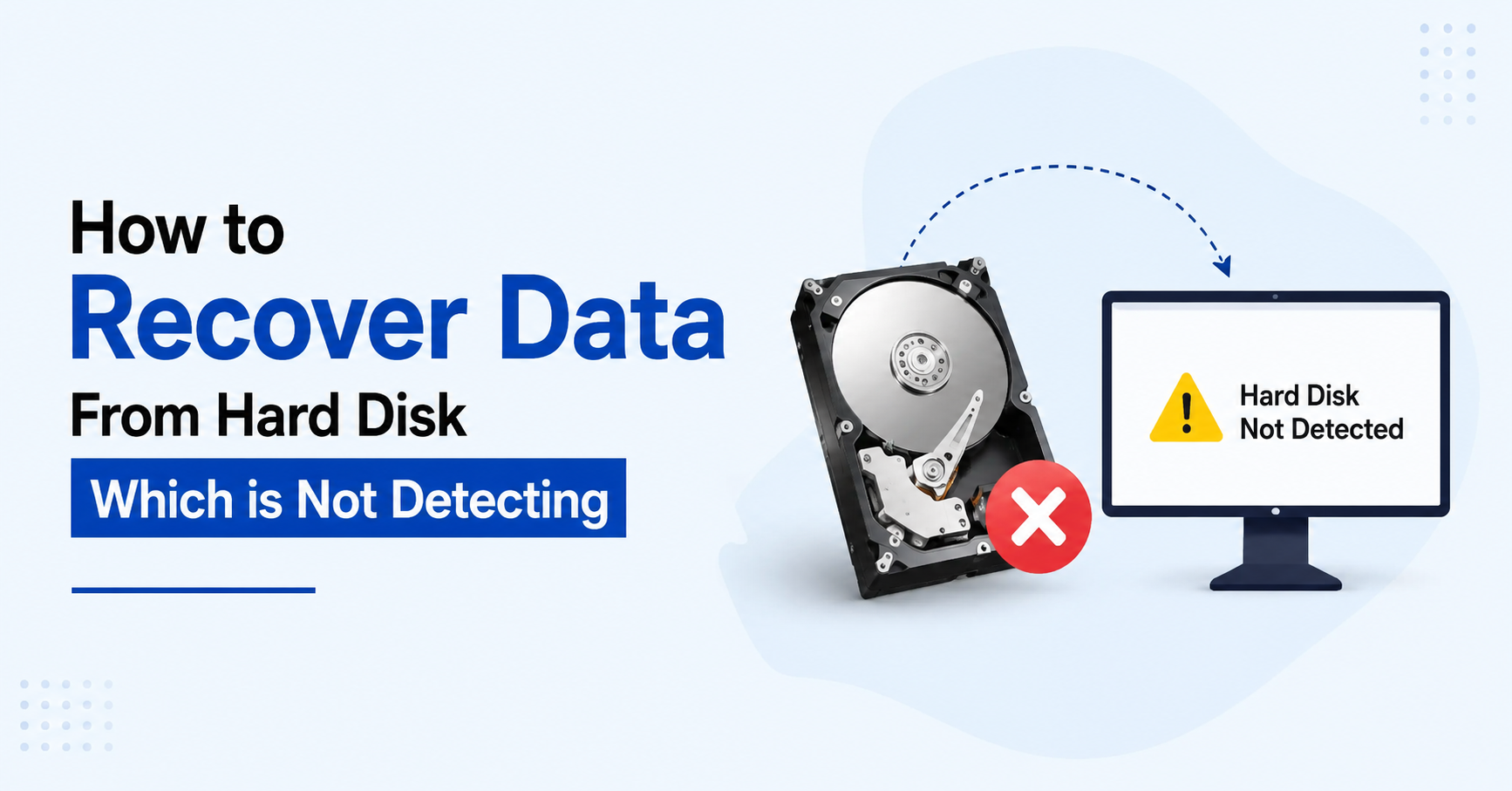
However, recovery is not guaranteed. If new files are written over the same storage area, parts of the old file may become damaged or completely unrecoverable.
That makes one rule extremely important:
Stop using the affected hard drive as soon as you realize important files have been deleted.
Can You Recover Deleted Files From a Hard Drive?
Yes, recovery can be possible, but several factors affect the result.
The most important factor is whether the deleted data has been overwritten. The type of deletion also matters. A file removed through normal deletion may have a different recovery situation from a drive that was formatted or heavily reused afterward.
The condition of the hard drive also matters. If Windows can detect the drive and it is operating normally, software-based recovery may be appropriate. If the drive is physically failing, continuing to scan it can create additional problems.
So, before trying to recover deleted files from a hard drive determine whether the drive is healthy enough to be scanned.
First Step: Stop Writing Data to the Drive
This is the most important safety measure.
Do not download new files, install applications, copy videos, create new folders, or continue using the affected drive for normal work.
Even installing a recovery application directly on the same drive can overwrite some of the data you are trying to recover.
If the deleted files were stored on an external HDD, disconnect it after confirming the deletion and connect it only when you are ready to perform the recovery.
If the deleted files were on your computer's internal drive, install the recovery software on a different drive whenever possible.
Check the Recycle Bin First
Before using recovery software, check the Windows Recycle Bin.
If the file was deleted through normal Windows deletion and the Recycle Bin has not been emptied, you may be able to restore it immediately.
This is the safest and simplest recovery method because Windows still has the original file-system entry. If the file is not there, do not assume that it is permanently gone. You can move to a proper hard drive data recovery process.
Avoid Common Recovery Mistakes
When users search for ways to recover deleted files from a hard drive, they often find instructions involving formatting, partition repair, or command-line tools.
These methods are not appropriate for every situation. For example, if your drive contains deleted files that you still need, formatting it creates another data-loss event. Similarly, running commands that modify the file system can make recovery more difficult.
You should also avoid repeatedly scanning an unstable or physically damaged hard drive. If the drive is making clicking or grinding sounds, disappearing from Windows, becoming extremely slow, or repeatedly disconnecting, stop using it and consider professional assistance.
Use Recovery Software for Deleted Files
If the hard drive is detected normally and the problem is accidental deletion, Data Recovery Software can be a practical option.
A recovery application scans the storage device for information associated with deleted files and attempts to reconstruct the files that are still readable.
A good recovery workflow should let you scan first, preview the results, and then choose which files you want to save.
This is much safer than immediately restoring everything because you can verify whether the important files are actually recoverable.
How to Recover Deleted Files From a Hard Drive Using Recovery Software
The process is straightforward, but each step should be performed carefully.
Step 1: Connect the Hard Drive
Connect the affected HDD to a working Windows computer. If it is an external drive, use a reliable USB connection and avoid unnecessary repeated reconnects.
Step 2: Select the Affected Drive
Open your recovery software and select the physical hard drive or partition where the files were originally stored.
Do not accidentally select your healthy system drive.
Step 3: Run a Scan
Start the available scan. A quick scan may find recently deleted files, while a deeper scan can search more extensively for recoverable data.
The scan may take time, especially when working with a large hard drive.
Step 4: Preview the Results
Once scanning is complete, browse the results and preview important files.
Previewing is useful because seeing a filename does not always mean the file is fully recoverable. Check whether documents open correctly and whether photos, videos, or other files appear intact.
Step 5: Select the Required Files
Do not recover unnecessary files simply because they appear in the results.
Select the important documents, photos, videos, or folders that you actually need.
Step 6: Save Them to Another Drive
This step is critical. Never save recovered files back to the same hard drive from which they were deleted.
Use another internal drive, external HDD, SSD, or another safe storage location. Saving recovered data to the source drive can overwrite other deleted files that may still be recoverable.
Using SysTools to Recover Deleted Hard Drive Data
For users who need a more structured recovery workflow, SysTools Hard Drive Recovery Software can be used to scan and recover data from Windows-based hard drives.
The software supports recovery scenarios such as deleted files, formatted partitions, RAW drives, corrupted file systems, lost partitions, and inaccessible hard drives. It also provides scanning and preview capabilities so users can inspect recoverable data before saving it.
The preview step is particularly useful when you are trying to recover deleted files from a hard drive and want to confirm the quality of the results before recovering everything.
Recommended SysTools Recovery Workflow
Open the software on a healthy Windows computer and select the affected hard drive. Start the scan and wait for the results to populate.
Browse the recovered folders and use the available filtering or search options to locate specific files. Preview the important files to confirm that they are readable.
Once you are satisfied with the results, select the required files and save them to a different storage device.
This approach keeps the original drive untouched while giving you an opportunity to verify the recovered data.
What If the Deleted Files Were on an External Hard Drive?
The recovery process is generally similar, but external drives introduce a few additional factors.
The USB cable, USB port, external enclosure, and power supply can all affect how Windows communicates with the HDD.
If the drive is detected with the correct capacity and remains stable during scanning, software recovery may be worth trying.
However, if the drive repeatedly disconnects or Windows reports unusual capacity information, do not keep reconnecting it and starting new scans. The issue may involve the hardware or USB enclosure rather than simple file deletion.
What If You Deleted Files After Formatting?
Formatting changes the situation.
A quick format may remove important file-system information while leaving some underlying data available. Recovery may still be possible, but the outcome depends on the file system, formatting method, subsequent disk usage, and whether new data has overwritten the previous content.
If you formatted the drive accidentally, stop using it immediately.
Do not create new partitions or copy files onto it before attempting recovery.
A deeper scan from suitable recovery software may locate files that are no longer visible through Windows File Explorer.
What If the Hard Drive Is Corrupted?
If your files disappeared because the file system became corrupted rather than because you intentionally deleted them, the recovery approach can be different.
Windows may show the drive as RAW, ask you to format it, or display an error when you try to open it.
Do not format the drive just because Windows asks you to.
If important data is still present, treat the message as a possible file system corruption problem and attempt data recovery before making structural changes.
How to Improve Your Chances of Recovery
The most effective recovery step is often the one you take immediately after data loss: stop using the drive.
You should also keep the recovered files separate from the source disk, avoid unnecessary repair operations, and preview important files before assuming that recovery was successful.
If the hard drive contains extremely important or irreplaceable information and shows signs of physical failure, software should not be your first choice. A professional recovery laboratory may be more appropriate.
Final Thoughts
Knowing how to recover deleted files from a hard drive is useful, but knowing what not to do is just as important.
Stop writing new data to the affected drive, check the Recycle Bin, and avoid formatting or running commands that modify the disk when important files are still missing. If the drive is stable and normally detected by Windows, recovery software can scan the available data and help locate deleted files.
When you use a tool such as SysTools Hard Drive Recovery Software, preview the results before saving them and always recover the files to a different storage device.
The chances of recovering deleted files from a hard drive are usually better when you act quickly and avoid unnecessary changes to the original disk. Once your important data is safely recovered, create a reliable backup so the same situation does not become a second emergency.


 English
 Arabic
 French
 Spanish
 Portuguese
 Deutsch
 Turkish
 Dutch
Dutch
 Italiano
 Russian
 Romaian
 Greek
Greek
