


POS Integration: How to Connect Your POS With QuickBooks and ERP
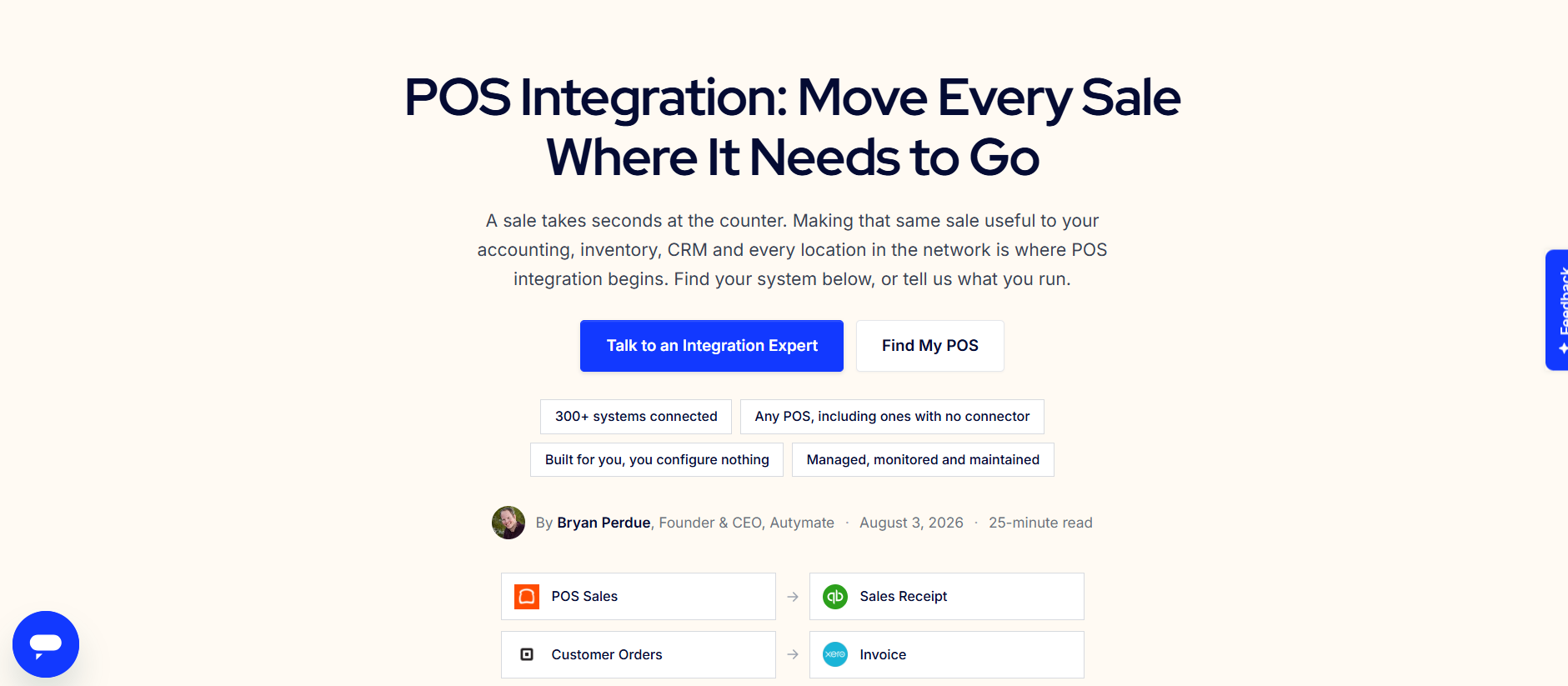
Your point-of-sale system captures some of the most important data in your business. Every sale, refund, tax amount, tip, discount, payment, product, and location can begin at the POS.
But that information usually needs to go somewhere else.
Your accounting team may need sales data in QuickBooks. Your operations team may need inventory and product information in an ERP. Finance may need deposits and payment fees for reconciliation. Management may need consistent reporting across multiple locations.
When these systems are disconnected, employees become responsible for moving the data manually.
That often means exporting reports, cleaning spreadsheets, preparing journal entries, correcting mapping errors, and checking whether the totals in the POS match the numbers in accounting.
A properly designed POS integration replaces much of that repetitive work with an automated and controlled data flow.
What Is POS Integration?
POS integration connects a point-of-sale platform with other business systems so information can move between them automatically.
A POS can potentially connect with:
- QuickBooks and other accounting platforms
- ERP systems
- CRM software
- Ecommerce platforms
- Inventory systems
- Databases
- Reporting tools
- Custom applications
The goal is not simply to copy data from one system into another.
A useful point of sale integration determines what the source data represents, how it should be transformed, where it belongs in the destination system, and what should happen if something is missing or incorrect.
For example, a POS may report sales, taxes, tips, discounts, processing fees, and payment types separately. QuickBooks needs those values mapped into the correct accounting records and accounts.
An ERP may need the same POS activity organized by products, locations, departments, warehouses, or other operational dimensions.
That mapping logic is what turns basic data movement into a dependable business workflow.
Why Connect Your POS With QuickBooks?
Many businesses use QuickBooks as their accounting system while sales happen in another platform.
Without a POS to QuickBooks integration, accounting teams may need to manually recreate the day's financial activity.
A restaurant, for example, could have:
- Food and beverage sales
- Sales tax
- Tips and gratuities
- Discounts
- Refunds
- Gift card activity
- Cash transactions
- Credit card payments
- Processing fees
- Deposits
Manually transferring this information every day becomes difficult as transaction volume increases.
A POS integration can collect the approved sales activity, map each category to the correct accounting destination, validate the totals, and create the required QuickBooks records.
The workflow may look like:
POS → Data Extraction → Mapping → Validation → QuickBooks
This allows finance teams to spend less time rebuilding POS reports and more time reviewing the financial results.
What POS Data Can Move Into QuickBooks?
The exact data depends on the POS platform, QuickBooks configuration, and accounting requirements, but common workflows may include:
Sales
Gross sales, net sales, product-category sales, service revenue, and location-level sales.
Taxes
Sales taxes can be separated from revenue and mapped according to the approved accounting structure.
Tips and Gratuities
Tips can be identified separately rather than being mixed into normal sales revenue.
Discounts and Refunds
Discounts, promotions, returns, refunds, and voids can be handled according to defined accounting rules.
Payment Methods
Cash, card, gift card, and other payment types can be categorized separately.
Fees
Merchant processing fees, platform fees, and service charges can be included in the accounting workflow.
Deposits and Payouts
POS activity can be structured to support reconciliation between sales, processor settlements, and bank deposits.
Why Connect a POS With an ERP System?
QuickBooks integration is primarily focused on accounting workflows. An ERP integration can support a broader set of financial and operational processes.
A POS to ERP integration may synchronize information such as:
- Sales
- Products
- SKUs
- Inventory
- Customers
- Payments
- Locations
- Departments
- Business units
- Warehouses
Imagine a retailer with stores across multiple cities.
When an item is sold at the POS, the ERP may need that information to update inventory, financial records, product reporting, and location-level activity.
Without integration, teams may need to transfer the information between systems manually or wait for scheduled spreadsheet uploads.
A POS ERP integration can make that process more consistent.
QuickBooks Integration vs. ERP Integration
The right destination depends on what your business needs to do with the data.
QuickBooks is often the destination for accounting records such as sales receipts, journal entries, payments, deposits, expenses, and related financial information.
An ERP system may need broader operational data such as inventory, product records, customers, locations, orders, and financial dimensions.
Some businesses need both.
For example:
POS → QuickBooks
for accounting and reconciliation
while also using:
POS → ERP
for inventory and operational management
The integration architecture should define which system owns each piece of information so the same data is not updated in conflicting ways.
How Does POS Integration Work?
A reliable POS integration typically follows several stages.
1. Connect the Systems
The first step is accessing the POS and destination system.
Depending on the applications involved, connectivity may use APIs, databases, SFTP, structured files, or other supported methods.
2. Identify the Required Data
Not every POS field needs to move.
The integration should identify exactly what QuickBooks or the ERP needs.
This may include sales, payments, taxes, products, customers, inventory, fees, and location information.
3. Map the Data
Every business structures its systems differently.
A POS category called Food Sales, for example, may need to map to a specific QuickBooks income account.
A store identifier may need to map to a QuickBooks location or an ERP business unit.
A SKU may need to match a specific inventory item.
Good mapping rules ensure information arrives in the destination in a usable form.
4. Transform and Validate
Some data must be summarized, split, reformatted, or calculated before it can be transferred.
Validation can also check for:
- Missing mappings
- Invalid values
- Incomplete records
- Duplicate transactions
- Incorrect company or location routing
Stopping a bad record before it reaches the accounting or ERP system is usually easier than correcting it afterward.
5. Automate the Transfer
Once the workflow is approved, information can move according to the required schedule.
Some businesses need frequent synchronization, while others may use daily batches.
The right frequency depends on the accounting and operational need.
6. Monitor the Integration
A successful launch is not the end of an integration.
Accounts change. Products are added. Locations open. Credentials expire. APIs change. Business rules evolve.
Monitoring helps identify failed records, missing activity, mapping problems, and other issues that require attention.
POS Integration for Multi-Location Businesses
The value of automation becomes even greater when a business operates many locations.
Manually handling one store may be manageable.
Handling the same process across 50, 100, or several hundred locations creates a different challenge.
A multi-location POS integration can use a standardized framework while maintaining location-specific settings.
For example, a reusable workflow might define:
- Standard account mappings
- Location routing
- Tax rules
- Payment mappings
- Deposit logic
- Product mappings
- Validation requirements
- Synchronization schedules
Each location can then maintain its own credentials and configuration where necessary.
Instead of rebuilding an integration every time another location opens, the business can onboard locations using a repeatable process.
Restaurant and Retail POS Integration
Restaurants and retailers often have particularly strong POS integration needs.
Restaurant POS Integration
Restaurant workflows may include sales, taxes, tips, discounts, delivery transactions, refunds, gift cards, payment types, and service fees.
Connecting this activity to QuickBooks or an ERP can reduce repetitive daily accounting work.
Retail POS Integration
Retail integrations can include store sales, products, SKUs, customers, inventory, payments, refunds, and ecommerce transactions.
Connecting the POS with accounting and ERP systems can help keep financial and operational information more consistent across physical and digital sales channels.
When Do You Need a Custom POS Integration?
A standard connector may be sufficient for a simple workflow.
But a custom integration may become necessary when you have:
- Multiple locations
- Multiple QuickBooks companies
- Custom accounting rules
- Complex product mappings
- High transaction volumes
- A proprietary POS
- Multiple destination systems
- Custom APIs or databases
- Advanced validation requirements
- Location-specific routing
- Detailed monitoring requirements
The objective should not be to build the most complicated solution.
The goal is to build the smallest reliable integration that supports the actual business process.
How Autymate Approaches POS Integration
Autymate builds and manages POS integration workflows around the way a business needs its data to arrive.
The process begins by identifying the POS platform, destination systems, locations, required records, and current manual workflow.
Next, the required mappings are defined for sales, taxes, products, payments, customers, locations, accounts, and other relevant fields.
Transformation, validation, routing, and duplicate-prevention rules can then be applied before approved records are transferred.
After launch, the integration can be monitored and maintained as products, accounts, locations, systems, and business requirements change.
For multi-location organizations, reusable templates can also help standardize common workflows while preserving location-specific configuration.
Connect Your POS Without Rebuilding the Same Data by Hand
Your POS already contains valuable financial and operational information.
The problem begins when employees have to manually recreate that information inside QuickBooks, an ERP, or another business system.
A well-designed POS integration creates a controlled connection between those platforms.
Sales can reach accounting. Products and inventory can reach ERP systems. Taxes, payments, fees, and deposits can be mapped correctly. Multi-location data can be routed to the right company or business unit.
The result is not simply faster data movement.
It is a more repeatable workflow between the systems your business already depends on.
If your team is still exporting POS reports, rebuilding spreadsheets, or manually preparing accounting entries, it may be time to evaluate a managed integration.
Autymate can help you map your POS workflow and connect it with QuickBooks, ERP, accounting, reporting, or other supported business systems.
CTA: Talk to an Integration Expert
Frequently Asked Questions
What is POS integration?
POS integration connects a point-of-sale system with accounting, ERP, CRM, ecommerce, database, or other business applications so approved data can move between systems automatically.
Can a POS system integrate with QuickBooks?
Yes, depending on the POS system and available access. Sales, taxes, tips, fees, refunds, payment methods, and deposits are common POS-to-QuickBooks workflow components.
Can POS data integrate with an ERP?
Yes. POS-to-ERP workflows can synchronize information such as sales, products, inventory, payments, customers, and location data.
Is POS integration useful for multiple locations?
Yes. Multi-location integrations can use reusable mappings and routing rules while maintaining company- or location-specific configurations.
Does every business need a custom POS integration?
No. Standard connectors may work for straightforward workflows. Custom integration becomes more useful when a business has complex mappings, multiple systems, multiple locations, custom rules, or monitoring requirements.

 English
 Arabic
 French
 Spanish
 Portuguese
 Deutsch
 Turkish
 Dutch
Dutch
 Russian
 Romaian
 Portuguese (Brazil)
 Greek
Greek
