


QuickBooks Clean Install Tool: Complete Guide
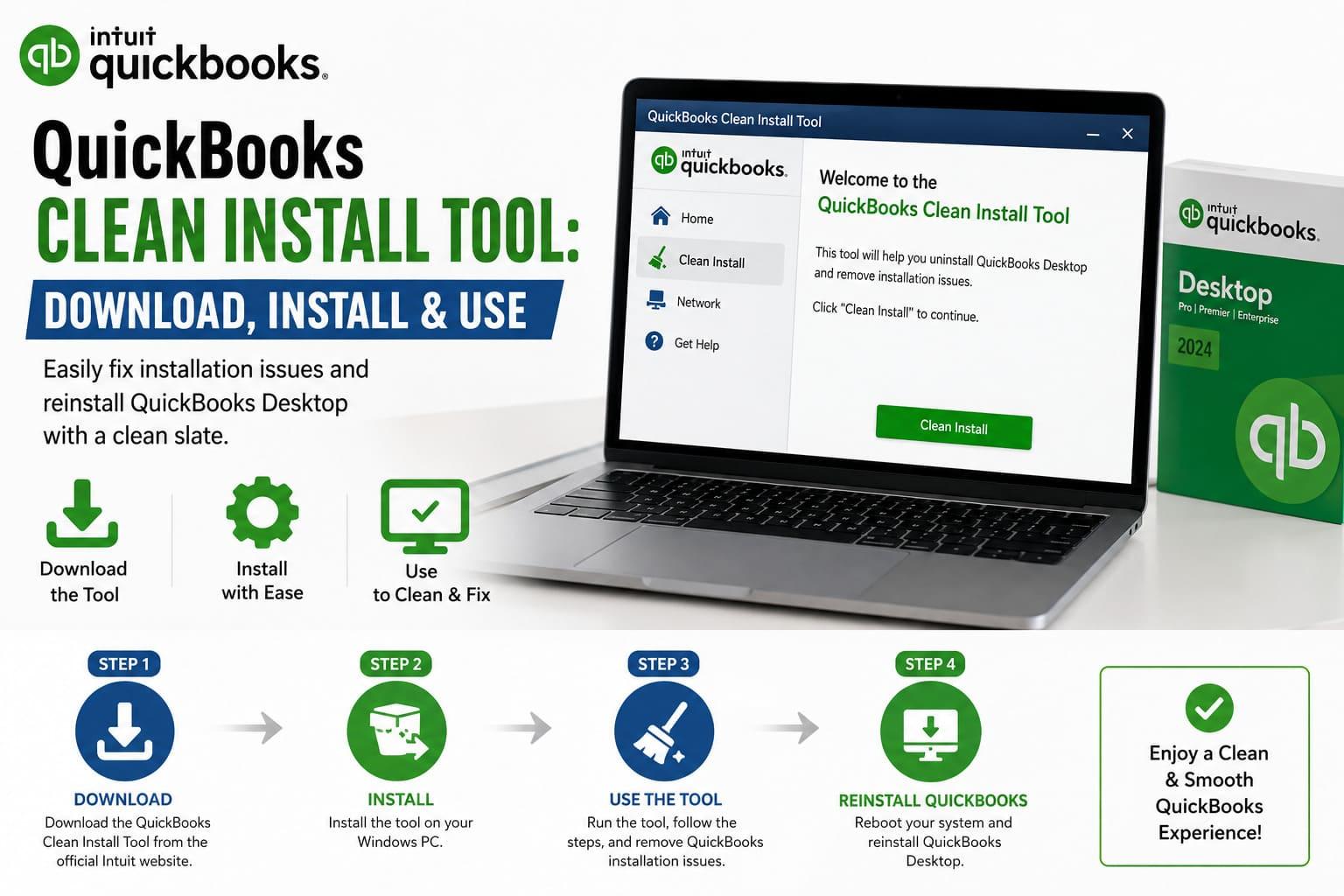
QuickBooks Desktop can sometimes develop installation, update, or startup problems that a normal repair or uninstall does not resolve. The QuickBooks Clean Install Tool helps remove damaged installation components so you can reinstall the program with fresh files and folders.
This guide explains what the tool does, when to use it, how to download and run it, how to rename installation folders manually, and what to do if the tool does not work.
What Is the QuickBooks Clean Install Tool?
The QuickBooks Clean Install Tool is a Windows utility designed to help reinstall QuickBooks Desktop when the existing installation is damaged or incomplete. It removes or renames QuickBooks program folders so that a new installation does not reuse corrupted files.
The utility is commonly accessed through the QuickBooks Tool Hub. Intuit’s Tool Hub includes an Installation Issues section for problems that occur while installing, updating, uninstalling, or opening QuickBooks Desktop. The Tool Hub can also help with errors such as 3371, 6123, H202, and “QuickBooks stopped responding.”
A clean installation generally involves three stages:
-
Uninstall QuickBooks Desktop.
-
Run the Clean Install Tool or manually rename the old installation folders.
-
Reinstall the correct version of QuickBooks Desktop.
The process affects the application files, not your company data. Intuit states that reinstalling QuickBooks Desktop does not affect company data, but you should still create a backup before making major changes.
The tool does not repair a damaged company file. If the issue is specifically related to company-file data, use QuickBooks File Doctor, Verify Data, or another appropriate data-repair method instead.
When Should You Use the QuickBooks Clean Install Tool?
A clean installation is useful when QuickBooks cannot be repaired through ordinary troubleshooting.
Consider using it in the following situations:
-
QuickBooks Desktop will not open after an update.
-
The installation repeatedly fails or stops midway.
-
QuickBooks displays installation errors, including error 3371.
-
QuickBooks crashes immediately after launch.
-
A previous version was incompletely uninstalled.
-
QuickBooks cannot update or repair itself.
-
The program displays missing-file or damaged-component messages.
-
Reinstalling QuickBooks normally does not resolve the problem.
-
QuickBooks is slow or unstable because of corrupted program files.
-
The Windows uninstall process leaves old QuickBooks folders behind.
You usually do not need the Clean Install Tool for a simple company-file error, forgotten password, printer problem, or network configuration issue. The QuickBooks Tool Hub has separate sections for company-file, network, program, password, and installation problems.
Before proceeding, save your work and close QuickBooks on every computer. If you use QuickBooks in a multi-user environment, notify other users before removing or reinstalling the program.
You should also prepare the following:
-
A recent backup of each company file.
-
Your QuickBooks license and product numbers.
-
The installer for the correct QuickBooks year and edition.
-
Windows administrator access.
-
Any payroll or third-party application credentials required after installation.
Your license information may be available in the original purchase email, product packaging, or your Intuit account.
QuickBooks Clean Install Tool: Download
The safest method is to download the QuickBooks Tool Hub from Intuit’s official support website rather than from an independent download page. The Tool Hub installer is commonly named `QuickBooksToolHub.exe`. Intuit recommends saving it somewhere easy to find, such as the Downloads folder or Windows desktop.
Download through QuickBooks Tool Hub
-
Close QuickBooks Desktop.
-
Open Intuit’s official QuickBooks Tool Hub support page.
-
Download the latest Tool Hub installer.
-
Save the file to your desktop or Downloads folder.
-
Locate and open `QuickBooksToolHub.exe`.
-
Accept the license terms and follow the installation instructions.
-
Open QuickBooks Tool Hub from the desktop shortcut or Start menu.
The current Tool Hub documentation recommends Windows 11 64-bit for the best experience. If you are using an older operating system, some tools or installation steps may behave differently.
Important download precautions
Avoid downloading executable files from unfamiliar websites. A file called “Clean Install Tool” may not be an official Intuit utility, and modified installers can create security or compatibility risks.
If Microsoft Defender blocks the Tool Hub installer, Intuit suggests trying another browser. If Defender displays a warning with a More info option, verify that you obtained the file from the official Intuit site before choosing Run anyway.
How to Install the QuickBooks Clean Install Tool
The Clean Install Tool is normally installed as part of QuickBooks Tool Hub rather than as a separate permanent application.
After downloading the Tool Hub:
-
Double-click `QuickBooksToolHub.exe`.
-
Follow the on-screen installation prompts.
-
Select the option to accept the terms and conditions.
-
Wait for the installation to finish.
-
Open QuickBooks Tool Hub.
-
Select the Home tab to check the installed Tool Hub version.
-
Open the Installation Issues tab.
When you choose a tool inside Tool Hub, it may download in the background. Intuit notes that this can take two to three minutes, so do not close the Tool Hub while the utility is being downloaded or launched.
If the Tool Hub does not open:
-
Restart Windows.
-
Right-click the Tool Hub icon and select Run as administrator.
-
Temporarily close other applications.
-
Confirm that QuickBooks is closed.
-
Download the Tool Hub again using a different browser.
-
Check whether antivirus software has quarantined the installer.
-
Install pending Windows updates if the computer is significantly out of date.
How to Use the QuickBooks Clean Install Tool
Once Tool Hub is installed, you can run the utility from the Installation Issues section.
Step 1: Open Installation Issues
-
Close QuickBooks Desktop.
-
Open QuickBooks Tool Hub.
-
Select Installation Issues.
-
Select Clean Install Tool.
-
Choose Yes if Windows asks for permission.
The exact labels can vary slightly depending on the Tool Hub version and QuickBooks edition.
Step 2: Select the QuickBooks version
The tool may ask you to select the QuickBooks Desktop version or product edition that you want to remove. Choose the version that is currently installed or the version you plan to reinstall.
Select Continue. The utility may close or restart QuickBooks-related processes and rename installation folders.
Step 3: Restart the computer
After the tool finishes, restart Windows. A restart releases files that may still be locked by QuickBooks services and ensures the old installation is no longer active.
Step 4: Reinstall QuickBooks Desktop
After restarting, use the correct QuickBooks installer. Install the same year and edition unless you intentionally plan to upgrade.
Do not open a company file until the installation is complete and QuickBooks has been updated.
How to Rename QuickBooks Installation Folders
If the Clean Install Tool is unavailable or does not complete successfully, you can manually rename the QuickBooks installation folders. Renaming is safer than deleting because it preserves the old folders until you confirm that the new installation works.
First, uninstall QuickBooks through Windows:
-
Open the Start menu.
-
Search for the Control Panel.
-
Open Programs and Features or Uninstall a Program.
-
Select your QuickBooks Desktop version.
-
Choose Uninstall/Change.
-
Select Remove and then Next.
If the Remove option does not appear, sign in to Windows with administrator privileges.
Next, open File Explorer and display hidden files. You can do this by selecting View, opening Show, and enabling Hidden items in supported Windows versions.
Look for the following folders. The year in the folder name depends on your QuickBooks version:
-
C:\ProgramData\Intuit\QuickBooks (year)
-
C:\Users\<username>\AppData\Local\Intuit\QuickBooks (year)
-
C:\Program Files\Intuit\QuickBooks (year)
-
C:\Program Files (x86)\Intuit\QuickBooks (year)
Intuit identifies these as common locations for QuickBooks installation folders.
For each folder that exists:
-
Right-click the folder.
-
Select Rename.
-
Add `old` or `.old` to the end of the name.
For example:
QuickBooks 2024
can become:
QuickBooks 2024.old
This prevents the new installation from using the previous folder. Intuit specifically recommends adding “old” to the folder name before reinstalling.
Do not rename the folder that contains your company files unless Intuit’s instructions specifically identify it as an installation folder. Company files may use `.QBW`, `.QBB`, or related extensions. Keep those files in a safe location and make sure they are backed up.
If Windows says the folder is in use
A QuickBooks process may still be running. Open Task Manager by right-clicking the Windows taskbar and selecting Task Manager. On the Processes tab, look for these processes:
-
`QBDBMgrN.exe`
-
`QBDBMgr.exe`
-
`QBCFMonitorService.exe`
-
`Qbw32.exe`
End the relevant processes, then try renaming the folders again. Intuit lists these processes as possible causes of access errors during manual folder renaming.
Use caution when ending processes. Do not terminate unrelated Windows processes, and do not shut down the computer while QuickBooks is writing to a company file.
How to Reinstall QuickBooks Desktop After Using the Tool
After running the Clean Install Tool or renaming the folders, reinstall QuickBooks Desktop using the original installation media or a trusted installer from Intuit.
Installation steps
-
Locate the QuickBooks installer.
-
Right-click it and select Run as administrator.
-
Accept the license agreement.
-
Enter your license and product numbers when prompted.
-
Select the installation type.
-
Choose the default installation location unless your administrator has a specific requirement.
-
Complete the installation.
-
Restart Windows if prompted.
-
Open QuickBooks Desktop.
-
Install the latest updates.
-
Activate or register QuickBooks if requested.
-
Open the company file from its original location.
For a single-user setup, the standard installation option is usually appropriate. For a multi-user setup, choose the option that matches your server and workstation arrangement. Installing the wrong network configuration can create hosting or H202 errors.
After reinstalling, test QuickBooks before restoring custom settings. Confirm that the application opens, a sample company file loads, and your own company file can be opened. Then reconnect printers, payroll services, bank feeds, and third-party applications as necessary.
Common Issues the Clean Install Tool Can Fix
The tool can resolve problems caused by damaged or incomplete program files, but it does not fix every QuickBooks error.
Installation error 3371
Error 3371 may appear when QuickBooks cannot load license or entitlement information correctly. A clean reinstall can help when the underlying installation or licensing components are damaged.
QuickBooks will not open
If QuickBooks closes immediately, freezes at the logo, or fails after an update, replacing the installation folders can eliminate damaged executable or configuration files.
Failed updates
An update may fail because files are locked, corrupted, or partially replaced. A clean installation gives the updater a fresh program structure.
Repeated repair failures
If Windows repair repeatedly reports that it cannot repair QuickBooks, the existing installation may be too damaged for a standard repair. The Clean Install Tool is a more thorough option.
Missing or corrupted program files
Messages referring to missing DLL files or inaccessible QuickBooks components may result from an incomplete installation. Reinstalling creates new copies of the required files.
Network and multi-user errors
A clean install may help if workstation program files are damaged, but it does not replace correct server setup. Errors such as H202 can also involve hosting, firewall, DNS, or network configuration. The Tool Hub includes a separate Network Issues section for these problems.
QuickBooks Clean Install Tool Not Working?
If the utility fails, freezes, or does not appear in Tool Hub, try these steps in order:
-
Close QuickBooks and restart Windows.
-
Open Tool Hub as an administrator.
-
Wait several minutes for the selected tool to download.
-
Confirm that the Tool Hub is the latest available version.
-
Temporarily disconnect from VPN software.
-
Check antivirus quarantine and Windows Defender history.
-
Run the Windows uninstall process manually.
-
Rename the installation folders yourself.
-
Restart Windows again.
-
Reinstall QuickBooks using the correct installer.
If you cannot uninstall QuickBooks, there may be a broader Windows permissions or operating-system issue. Intuit recommends contacting an IT professional or Microsoft when the Windows uninstall process itself fails.
If QuickBooks still does not work after reinstalling, identify whether the problem affects the program or the company file. Try opening a sample company file. If the sample file opens but your company file does not, the issue may be related to the company file or its location rather than the QuickBooks installation.
Also verify that:
-
The installed version matches your company file requirements.
-
Your Windows user account has appropriate permissions.
-
The company file is stored on a supported local or network location.
-
Another user is not locking the file.
-
QuickBooks is updated after installation.
-
Your firewall and security software allow required QuickBooks processes.
Do not delete the renamed `.old` folders immediately. Keep them until the new installation has been tested and your settings have been restored.
Frequently Asked Questions
Does the Clean Install Tool delete company files?
Normally, no. The tool targets the QuickBooks Desktop program and installation folders. However, you should back up your company files before using it and avoid deleting folders unless you know exactly what they contain. Intuit states that reinstalling QuickBooks does not affect company data.
Is the Clean Install Tool available for QuickBooks Online?
No. QuickBooks Online runs in a web browser and does not use the same Windows Desktop installation files. The Clean Install Tool is intended for QuickBooks Desktop on Windows.
Can I use the tool without uninstalling QuickBooks?
The recommended process is to remove QuickBooks first and then use the clean-install procedure if necessary. If ordinary reinstalling does not solve the problem, uninstall the application and rename the remaining folders before reinstalling.
How long does a clean installation take?
The process may take from several minutes to an hour, depending on download speed, Windows performance, installation media, updates, and the size of your company file. The Tool Hub itself may take two to three minutes to download an individual tool.
Should I rename every QuickBooks folder?
No. Rename only the installation folders associated with the affected QuickBooks version. Do not rename company-file folders or unrelated Intuit folders without confirming their purpose.
Can I reinstall a different QuickBooks year?
You can install another supported version, but compatibility and licensing rules may apply. Use the installer and license information for the version you own. If you work with a company file created in a newer version, an older QuickBooks version may not open it.
Will I need to activate QuickBooks again?
You may be asked to sign in, enter your license number, or activate the product after reinstalling. Keep your license and product information available before beginning.
What if the company file still will not open?
A clean installation only replaces the application. If a sample company file opens but your own file does not, run the appropriate company-file diagnostic tools, restore a recent backup, or contact QuickBooks support. Avoid repeatedly opening a potentially damaged file without a backup.
Is manually renaming folders safe?
Renaming is generally safer than deleting because the old folders remain available for recovery. Follow the folder paths carefully, add a clear suffix such as `.old`, and retain a backup before making changes.

 English
 Arabic
 French
 Spanish
 Portuguese
 Deutsch
 Turkish
 Dutch
Dutch
 Italiano
 Russian
 Romaian
 Greek
Greek
