


Unlock Password Word File: Easy Ways to Regain Access
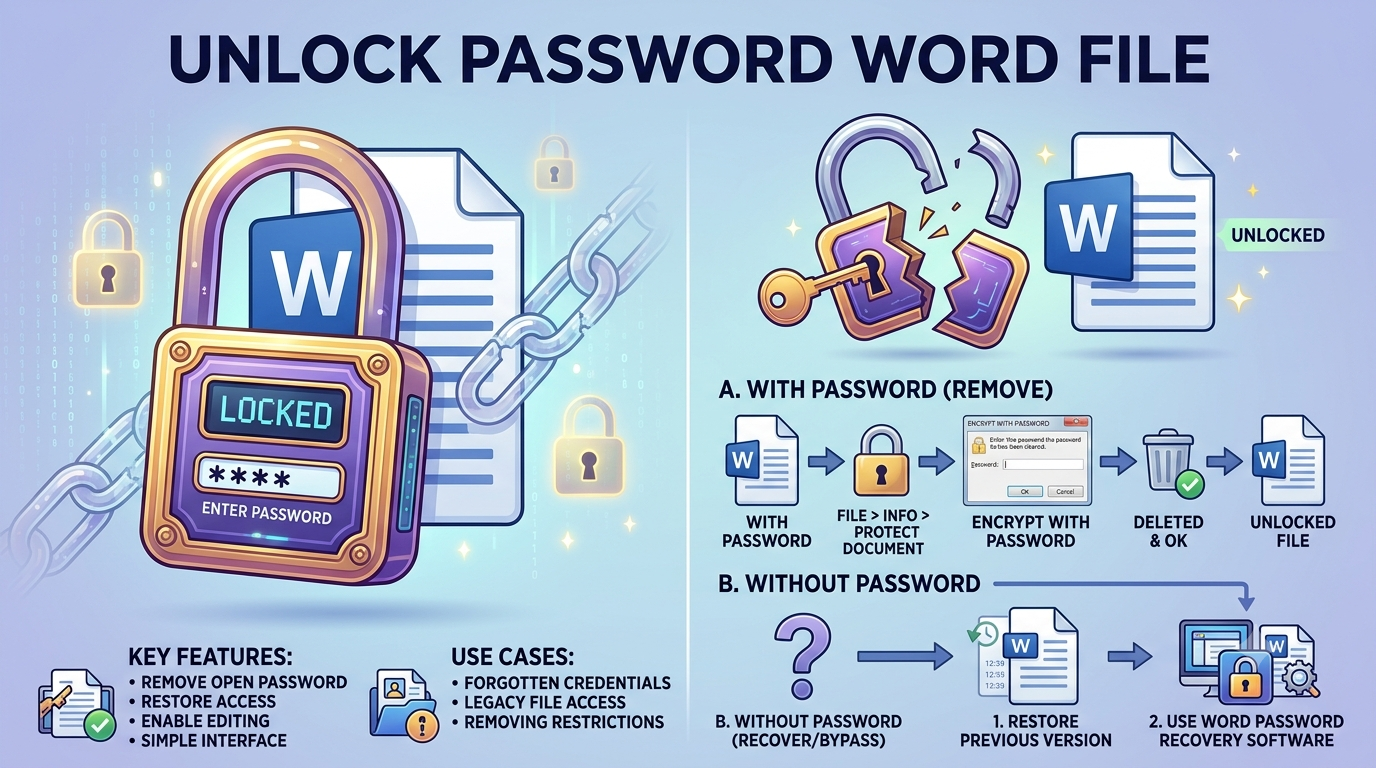
Have you ever tried opening an important Word document only to realize you can't remember the password? It can be frustrating, especially when the file contains work reports, legal documents, study material, or personal records. Since Microsoft Word uses strong encryption to secure password-protected files, there isn't a direct way to bypass the password.
The good news is that there are several legitimate methods you can try before giving up on the document. In this guide, you'll learn practical ways to unlock password Word file access, understand why password protection is important, and discover what to avoid during the recovery process. Additionally, learn how to unlock a Word document without password if you've forgotten the credentials and need reliable methods to regain access to your protected file.
Why Use a Password to Protect Word Documents?
Password protection is one of the easiest ways to keep confidential information safe. Whether you're sharing files with colleagues or storing sensitive documents on your computer, adding a password helps prevent unauthorized access. However, if you forget the password, regaining access can become challenging. Understanding the right ways to unlock password Word file documents can help you recover important data without compromising its security.
Some common reasons people protect Word files include:
-
Preventing unauthorized users from opening confidential documents.
-
Protecting financial, legal, or business information.
-
Securing academic projects and research papers.
-
Keeping personal records private.
-
Preventing accidental editing or copying.
Methods to Unlock Password Word File
There isn't a universal method that can instantly remove passwords from encrypted Word documents because Microsoft uses strong encryption to protect them. However, if you've forgotten the password, the following methods may help you unlock password Word file access and regain entry to your document.
#1. Try Passwords You Frequently Use
Before trying advanced recovery methods, think about passwords you've commonly used in the past.
You may have used:
-
Your name or initials.
-
Birthdays or anniversaries.
-
Phone numbers.
-
Company names.
-
Favorite words or phrases.
-
Common password combinations.
Many users eventually remember the correct password after trying a few familiar options.
#2. Check Saved Passwords
If you usually save passwords in your browser or a password manager, it's worth checking there first.
Look in:
-
Password manager applications.
-
Browser saved passwords.
-
Company credential vaults.
-
Personal password notebooks.
-
Previous emails or chats where the password may have been shared.
This simple step often helps users unlock password Word file without using additional software.
#3. Ask the Person Who Protected the Document
If the password-protected document was shared with you by someone else, contact the sender before attempting any recovery method. They may be able to provide the correct password or send an unlocked copy, making it the quickest way to unlock password Word file access.
They may:
-
Share the correct password.
-
Send an unprotected version.
-
Remove the password and resend the file.
-
Confirm whether you're opening the correct document.
#4. Restore an Older Copy
If the password was added recently, an earlier version of the document may still exist.
Check:
-
OneDrive Version History
-
Windows Previous Versions
-
Cloud backups
-
External backups
-
Email attachments
If an earlier version is available, you may regain access without needing to recover the password.
#5. Use a Professional Recovery Tool to Unlock Password Word File
If you've exhausted the above options and still can't access the document, a professional recovery solution can help. SysTools MS Word Password Recovery software is designed to recover passwords from protected Microsoft Word documents using advanced recovery techniques.
Steps:
-
Download and install the tool on your Windows computer.
-
Add the password-protected Word file you want to recover.
-
Select the appropriate recovery mode based on your requirements.
-
Click the Recover button to start the password recovery process.
-
Use the recovered password to unlock the Word file and access your document.
Common Mistakes That Can Delay Password Recovery
When trying to unlock Word document password, many users unknowingly make the process more difficult.
Avoid these common mistakes:
-
Trying random passwords without considering likely combinations.
-
Downloading password recovery software from unknown websites.
-
Editing or modifying the protected Word file.
-
Ignoring backup copies that may already exist.
-
Assuming online password removal websites can bypass strong encryption.
-
Closing the recovery process before it completes.
-
Forgetting to save recovered passwords for future use.
Avoiding these mistakes can improve your chances of successfully unlock password Word file documents.
End Note
Losing access to a password-protected Word document doesn't always mean the file is gone forever. Start with simple methods such as checking saved passwords, trying familiar combinations, or contacting the document owner. If those options don't work, a trusted solution can help recover the password using legitimate recovery methods. By following the right approach and avoiding common mistakes, you can improve your chances of regaining access to your important Word files safely.

 English
 Arabic
 French
 Spanish
 Deutsch
 Turkish
 Dutch
Dutch
 Italiano
 Russian
 Romaian
 Portuguese (Brazil)
 Greek
Greek
