


Copilot Prompting Tips for Excel Formulas and PowerPoint Decks
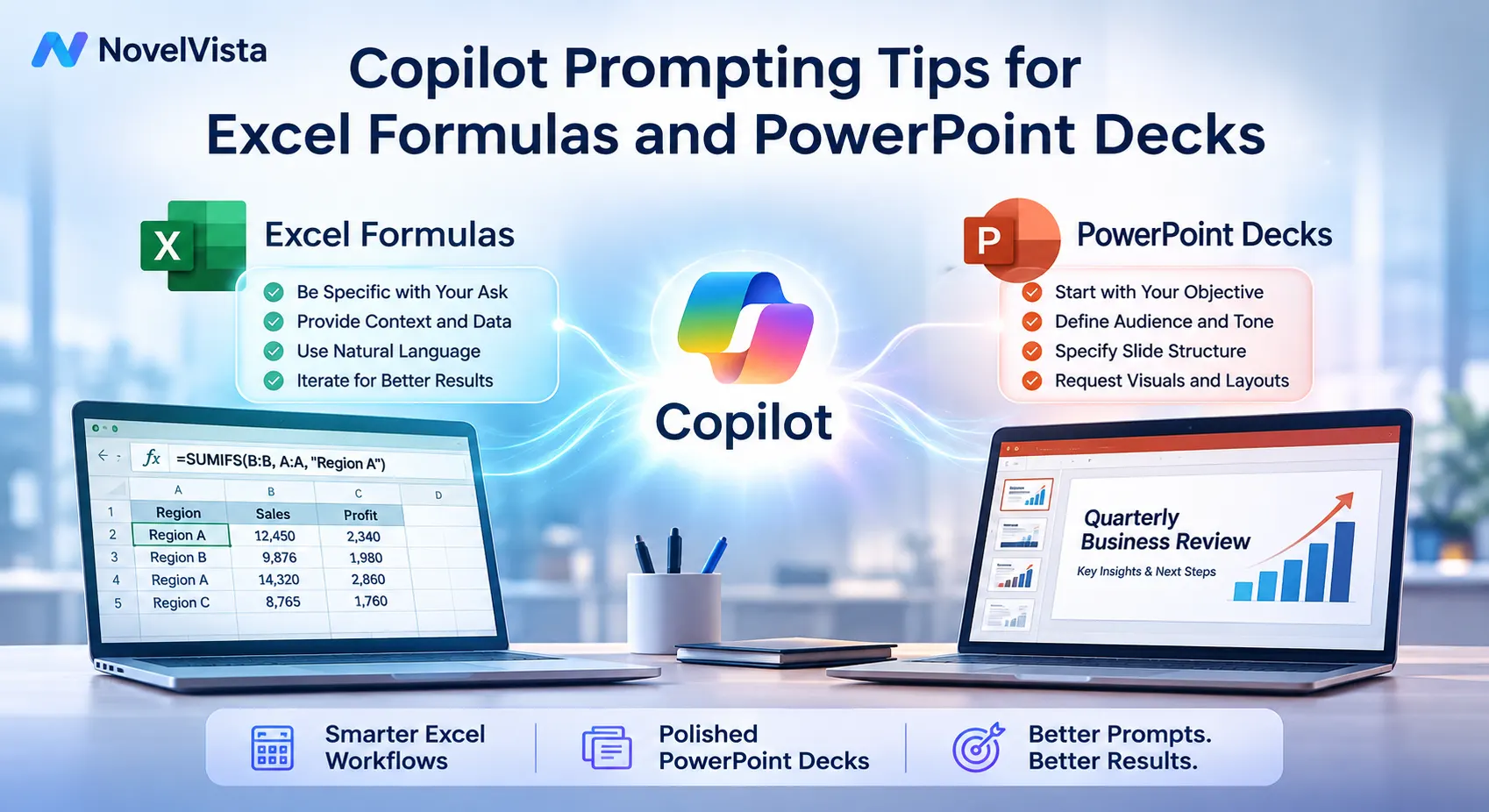
Microsoft Copilot can save hours of repetitive work in Excel and PowerPoint, but the quality of its output depends heavily on the quality of your prompt. A vague instruction often produces a generic result, while a clear prompt gives Copilot enough context to generate useful formulas, summaries, and slides. Small details often make the biggest difference in generated results.
The key is to treat Copilot like a capable colleague. Instead of saying, “Create a formula” or “Make a presentation,” explain what you are trying to achieve, and what the final output should look like.
Start With a Clear Goal
Every effective prompt begins with a specific objective. In Excel, your goal may be to calculate monthly growth, identify duplicate records, categorize sales performance. In PowerPoint, you may want to create a client proposal, training deck, executive summary, or project update.
Instead of asking:
“Give me a sales formula.”
Try:
“Create an Excel formula that calculates the percentage growth between the sales value in cell B2 and the sales value in cell C2. Return zero if either cell is blank.”
This prompt gives Copilot the task, cell references, and error-handling requirement.
Provide Context About Your Data
Copilot performs better when it understands the structure of your worksheet. Mention column names, table names, and business rules. Avoid assuming Copilot understands what every value represents.
A stronger Excel prompt could be:
“In the SalesData table, use the Revenue and Target columns to create a formula that returns ‘Above Target’ when revenue is at least 100% of target, ‘Near Target’ when it is between 80% and 99%, and ‘Below Target’ when it is under 80%.”
This is more useful than asking Copilot to “classify sales.”
Ask Copilot to explain the formula. Add, “Explain each part of the formula in simple language.” This makes it easier to validate the result.
Break Complex Excel Tasks Into Steps
For complicated formulas, avoid combining too many requirements into one sentence. Ask Copilot to solve the problem in stages.
You might ask it to generate the formula and suggest a version with error handling. This works well for XLOOKUP, INDEX and MATCH, nested IF statements, date calculations, conditional totals.
Also specify your preferred formula style. You can ask Copilot to use structured table references, avoid volatile functions, or provide a formula compatible with older Excel versions.
Give PowerPoint a Strong Brief
When using Copilot for PowerPoint, include the purpose, audience, number of slides, tone, and structure. A prompt such as “Create a presentation about cybersecurity” leaves too many decisions open.
A better prompt would be:
“Create an eight-slide cybersecurity awareness presentation for non-technical employees. Use a professional but friendly tone. Include phishing, password security, device safety, reporting procedures, and a final checklist. Keep each slide concise and include speaker notes.”
This prompt creates boundaries and gives Copilot a clear flow.
Ask for a Slide-by-Slide Structure
Before generating the full deck, ask Copilot to create an outline. Review the sequence, remove unnecessary sections, and add missing topics. Once the outline is approved, ask it to turn the outline into slides.
You can control detail by saying, “Use no more than five bullets per slide,” or “Use one key message and one supporting example on each slide.” These instructions prevent overcrowded slides and improve readability.
Refine the Output Through Follow-Up Prompts
The first output is rarely final. Copilot works best through iteration. Ask it to shorten text, simplify language, add examples, improve slide titles, rewrite content for executives, or convert technical information into a visual comparison.
Useful follow-up prompts include:
“Make the slide titles more action-oriented.”
“Reduce the content by 30% without removing key information.”
“Turn this table into three executive insights.”
“Suggest a chart that best represents this data.”
Always Review Before Using
Copilot can accelerate work, but it should not replace human judgment. Check Excel formulas for incorrect references, missing conditions, and calculation errors. In PowerPoint, verify facts, numbers, tone, branding, and slide consistency.
The most effective Copilot users provide context, define constraints, review the response, and refine it. With better prompting habits, Excel formulas become more accurate, PowerPoint decks become more focused, and everyday productivity improves without sacrificing quality.

 English
 Arabic
 French
 Portuguese
 Deutsch
 Turkish
 Dutch
Dutch
 Italiano
 Russian
 Romaian
 Portuguese (Brazil)
 Greek
Greek
