


Convert Logo to VIP Embroidery File for Smooth Machine Compatibility
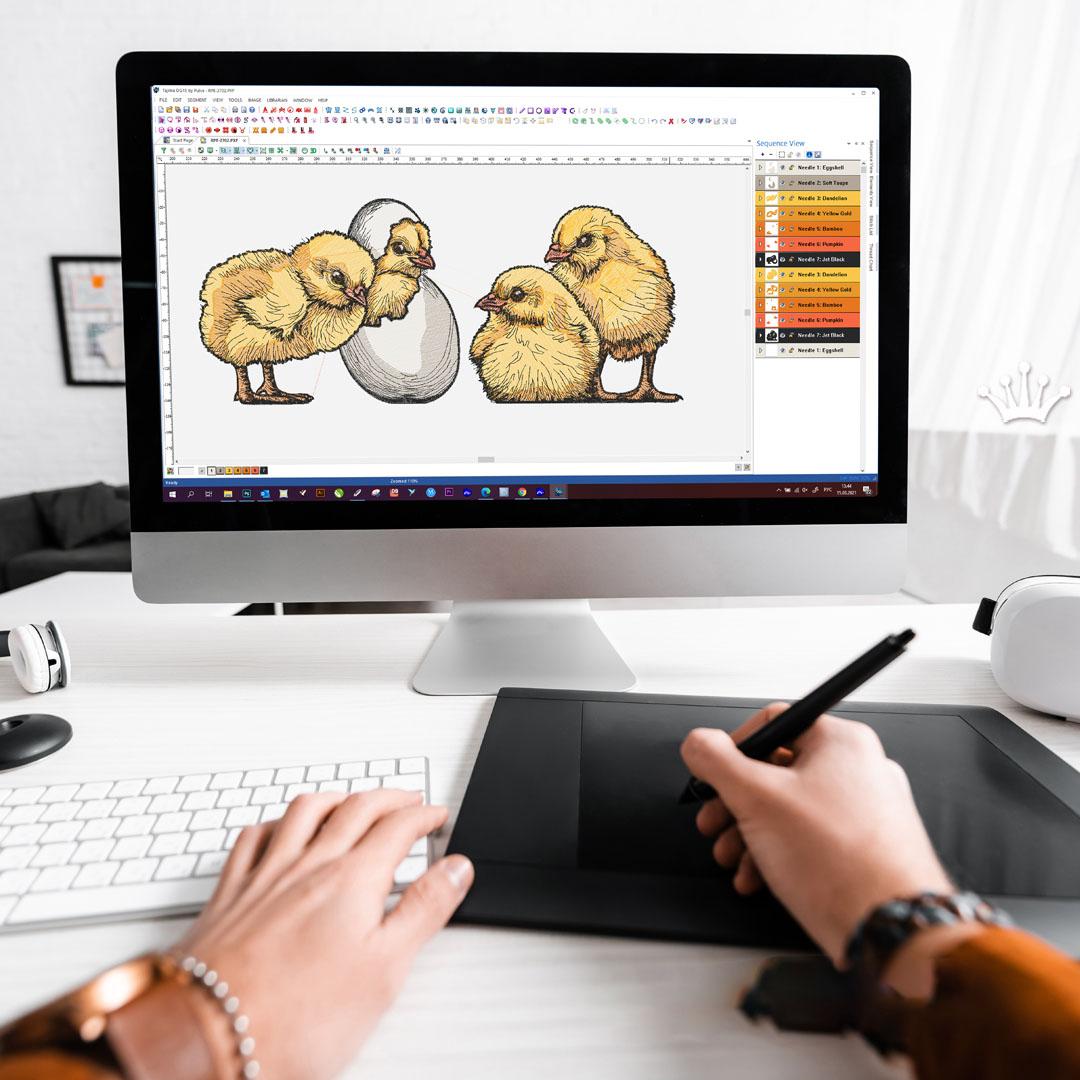
You have a logo. You have an embroidery machine. And somewhere between your computer screen and the needle, things just go wrong. I have been there. You load a file, hit start, and suddenly your machine is snapping thread and stitching a tangled mess that looks nothing like your beautiful logo. Here is the problem: most machines, especially older Pfaff and Husqvarna Viking models, do not speak regular picture language. They speak .VIP. So if you want to Convert Logo to VIP Embroidery File the right way, you need to understand how to translate your design into stitches, not just pixels.
Let me walk you through exactly what a .VIP file is, which machines actually use it, and how to get your logo converted without losing your mind or breaking your needles.
What Actually Is a .VIP Embroidery File?
Let me clear up a common confusion first. A .VIP file is not a picture. You cannot just rename a JPEG and call it a day. A .VIP file is a stitch pattern format used by sewing machines manufactured by the VSM Group, specifically for Viking and Pfaff brands . Think of it as a detailed road map for your needle. It tells the machine where to plunge, what direction to travel, how dense the stitches should be, and even which thread color to use .
Here is what a .VIP file actually stores inside it:
Stitch-by-stitch coordinates
Thread color information
Hoop size requirements
Additional production notes
The catch? The .VIP format is considered a legacy format . It was the standard for older Pfaff and Husqvarna Viking machines, but modern machines have mostly moved on to newer formats like .VP3 and .VP4. So if you have an older machine, .VIP is your best friend. If you have a newer one, you might need a different file type.
Which Machines Actually Use .VIP Files?
Before you go through the trouble of converting your logo, let me help you figure out if you even need a .VIP file. Not every Pfaff uses the same format. Here is a quick breakdown based on actual machine specifications :
Older Pfaff models that use .VIP files include:
Creative 2170 – Uses .VIP and .VP3
Creative 2140 / 2144 – Uses .PCS and .VIP
Creative 2134 – Uses .VIP and .VP3
Newer Pfaff models have moved on:
Creative Icon – Uses .VP3 and .VP4
Smart 300e – Uses .VP3
Creative Stylist MN 110 – Uses .VP3
Creative Vision 5.0 – Uses .VP3
So here is the bottom line. If you have a newer Pfaff machine from the last ten to fifteen years, you probably want .VP3 instead of .VIP. But if you are rocking a vintage Creative 2170 or 2134, .VIP is exactly what you need.
Why You Cannot Just Convert a PNG to VIP with a Free Tool
I see beginners make this mistake all the time. They find a free online converter, upload their logo, and download a .VIP file in thirty seconds. Then they wonder why the embroidery looks terrible. Here is the truth. There is no direct PNG to VIP conversion like converting a photo to a PDF. Embroidery digitizing is a completely different process .
A PNG file tells your computer, "this pixel is blue, this pixel is white." An embroidery file tells your machine, "take a stitch here at a 45-degree angle, then jump 2 millimeters, then take another stitch."
Free auto-digitizing tools do not understand stitch angles, density, underlay, or pull compensation. They just guess. And their guesses usually result in thread breaks, fabric puckering, and designs that look nothing like your original logo .
I tried the free route once with a simple company logo. The auto-digitized file sewed so densely that the needle kept snapping. I spent more on replacement needles than I would have paid a professional digitizer. Do not be me.
How to Properly Convert Your Logo to VIP (The Right Way)
Let me walk you through the actual process that professional digitizers use. You can do this yourself if you buy the right software, or you can hire a pro. Either way, here are the steps .
Step 1: Start with a Clean, High-Resolution Logo
Your logo needs to be crisp before anyone can digitize it. Vector files like AI, SVG, or EPS are ideal because they scale without losing quality. If you only have a JPEG or PNG, make sure it is at least 300 DPI. Blurry logos make blurry embroidery.
Remove all shadows, gradients, and fancy effects. Embroidery cannot do gradients like a printer can. Simplify your design to solid colors with clean edges.
Step 2: Open Your Logo in Professional Digitizing Software
You need specialized software to create a .VIP file. The industry standards include Wilcom Embroidery Studio, Hatch, Embird Studio, or for Mac users, TruEmbroidery . These programs are not cheap—expect to spend several hundred to over a thousand dollars—but they give you real control over every stitch.
Step 3: Manually Assign Stitch Types (Do Not Use Auto-Digitize)
Here is where the magic happens. You manually tell the software what kind of stitch goes where :
Satin stitches for borders, letters, and anything that needs a raised, shiny look
Fill stitches (also called tatami) for large solid areas
Run stitches for fine details and outlines
If you rely on auto-digitize, your software will guess these assignments. And it will guess wrong more often than not.
Step 4: Adjust Stitch Density and Underlay
Stitch density controls how close together each stitch lands. Too dense, and your needle breaks or your fabric puckers. Too sparse, and you see fabric peeking through your design. For most standard fabrics like cotton or polyester, aim for a density around 0.40 millimeters between stitches.
Underlay is a foundation layer of stitches that goes down first. It stabilizes the fabric and prevents your top stitches from sinking into stretchy materials. Never skip underlay, especially on knits or caps .
Step 5: Add Pull Compensation
Here is a weird thing about embroidery. Fabric stretches as you stitch into it. So a perfect circle in your software often sews out looking like an egg. Pull compensation fixes this by making your shapes slightly wider or taller than you want them to end up. Add about 0.2 to 0.3 millimeters of compensation for standard fabrics .
Step 6: Preview and Simulate
Before you export, use your software's stitch simulator to watch how the design will sew. Look for long jump stitches (these get caught on hoops), overlapping issues, and density problems. Fix them now, not after you have ruined a shirt.
Step 7: Export as .VIP File
Once your design looks perfect in the preview, export or save it as a .VIP file. Most professional software like Wilcom or Embird Studio supports .VIP export . Make sure you select the correct format for your specific machine model.
Step 8: Test Sew on Scrap Fabric
This step is non-negotiable. Run your new .VIP file on a piece of scrap fabric that matches your final material. Check for thread breaks, misalignments, and color issues. Adjust your digitizing settings and test again until it looks perfect .
What If You Just Want to Hire a Professional?
Look, I get it. Not everyone wants to spend a thousand dollars on digitizing software and spend weeks learning how to use it. That is completely fine. Professional digitizing services exist exactly for this reason.
A good digitizer will take your logo and deliver a clean .VIP file for a reasonable price. Most services charge between ten and forty dollars for a standard logo, depending on complexity . They handle all the stitch density, underlay, and pull compensation adjustments for you. You just send them your logo, tell them your machine model, and they send back a file that works.
The key is finding a digitizer who actually understands .VIP files. Since .VIP is a legacy format, some newer digitizers may not be familiar with it. Ask them specifically if they have experience exporting .VIP for older Pfaff or Husqvarna Viking machines.
Common .VIP Problems and How to Fix Them
Even with a good file, things can go wrong. Here are the most common issues I have seen and how to solve them.
Your machine does not recognize the file. Double-check that your specific machine actually supports .VIP. Refer to the compatibility chart I shared earlier. If your machine uses .VP3 or .PCS instead, you need a different file format .
Thread keeps breaking. Your stitch density is probably too high. Go back to your digitizing software and reduce the density by about 15 percent. Or ask your digitizer to create a less dense version.
The design looks stretched or squashed. This is a pull compensation issue. Add more compensation in the direction that is pulling short. For standard fabrics, start with 0.2 millimeters and adjust from there .
Colors are wrong. The .VIP file stores color information, but different machines interpret colors differently. Check your machine's color palette and manually assign the correct thread colors before sewing .
Conclusion: Get That Logo Stitching Smoothly
Converting a logo to a .VIP embroidery file is not as simple as clicking a button on a free website. But it is also not rocket science. You have two solid paths forward.
Path one, invest in professional digitizing software like Wilcom or Embird Studio, learn the craft, and digitize your own designs. This takes time and money upfront but gives you complete control forever.
Path two, hire a professional digitizing service that specifically understands .VIP files. Pay ten to forty dollars per logo and get back a file that just works. This is faster and often cheaper in the short term.
Either way, start with a clean, high-resolution logo. Always test sew on scrap fabric before your final product. And never trust a free online auto-digitizer to handle a real logo. Your machine deserves better. Your fabric deserves better. And honestly, you deserve better than picking out tangled thread for an hour.
Go get that logo converted the right way. Your Pfaff or Husqvarna Viking will thank you with smooth, beautiful stitching.

 English
 Arabic
 French
 Portuguese
 Deutsch
 Turkish
 Dutch
Dutch
 Italiano
 Russian
 Romaian
 Portuguese (Brazil)
 Greek
Greek