


SVG vs Vector File Formats for Crafters
SVG vs Vector File Formats for Crafters
You download a design bundle, open the folder, and there they are. SVG, AI, EPS & PDF. Four different file types are sitting next to each other, and at first glance they all look like the same thing.
But they are not the same. Pick the wrong one and your Cricut shows an error, your laser cutter won't even read the file, or your print shop sends the order back asking for "the actual vector file."
So let's start with the basic question: is svg a vector file? Yes, it is. But here's what most beginners get wrong, not every vector file is an SVG. That one detail creates confusion when you're switching between a cutting machine, design software, and a print on demand store.
Let's break it down properly, step by step.
What Does "Vector File" Actually Mean?
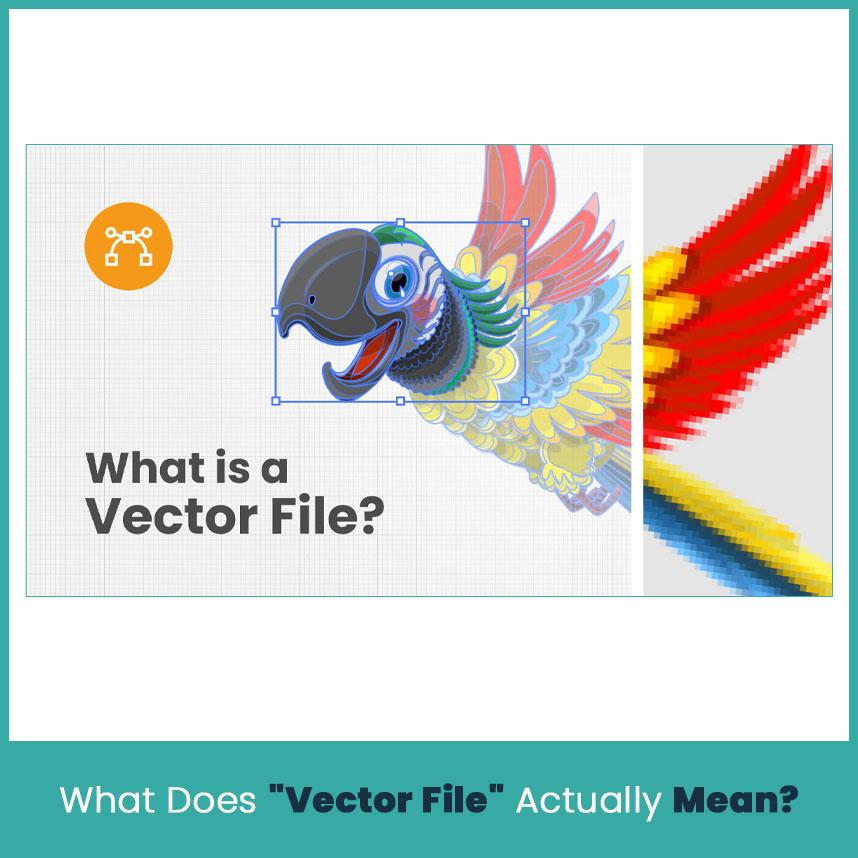
A vector file is not made of tiny colored dots like a photo. It is based on points, lines, and curves, all stored as math. That’s why you can resize a vector logo to any size, even huge, and the edges still stay clean and sharp.
A JPG or PNG can’t do that. Zoom in too far on one and you will see those small blocky squares, the fuzzy edges crafters call pixelation.
Not only SVG is just a vector file, AI, EPS, and PDF are also vector files. They all work on the same basic idea, but each one is built a little differently depending on the software that made it.
What is an SVG File and Why Crafters Love it?
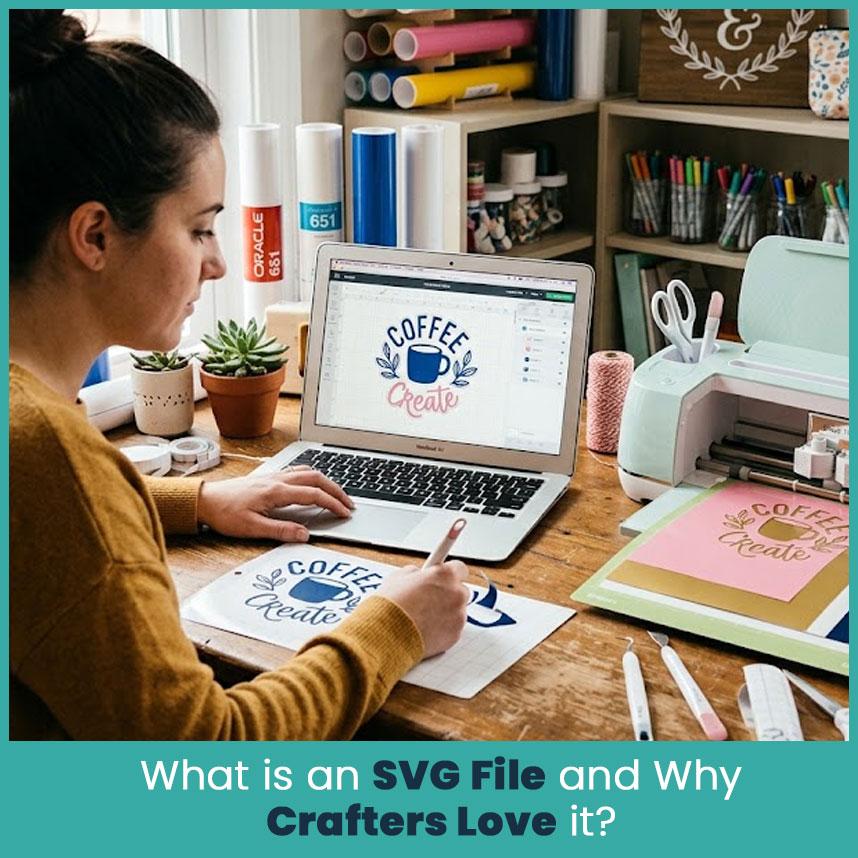
So, what is a svg file format? SVG stands for Scalable Vector Graphics. It is written in a simple text based code called XML, which is basically instructions telling the software how to draw each shape. That is one reason the file stays small and easy to share.
I have given SVG files to people who never used design software before, and they still managed to cut a clean design on their first try. That is why SVG became so popular with crafters. It may not have every advanced feature that other formats have, but it is by far the easiest one to work with.
Here is why crafters keep coming back to it:
-
Opens directly in Cricut Design Space and Silhouette Studio, no need to use extra plugins.
-
Small file size, so bundles and free downloads open fast.
-
Layers stay separate & editable, so you can change the color or size of one part without touching the rest.
-
Free programs like Inkscape can open and edit it, no paid software required.
If you are cutting vinyl, making stickers, or designing a t-shirt for a print on demand store, SVG is usually the format you will use the most.
Other Common Vector Formats Crafters Should Know
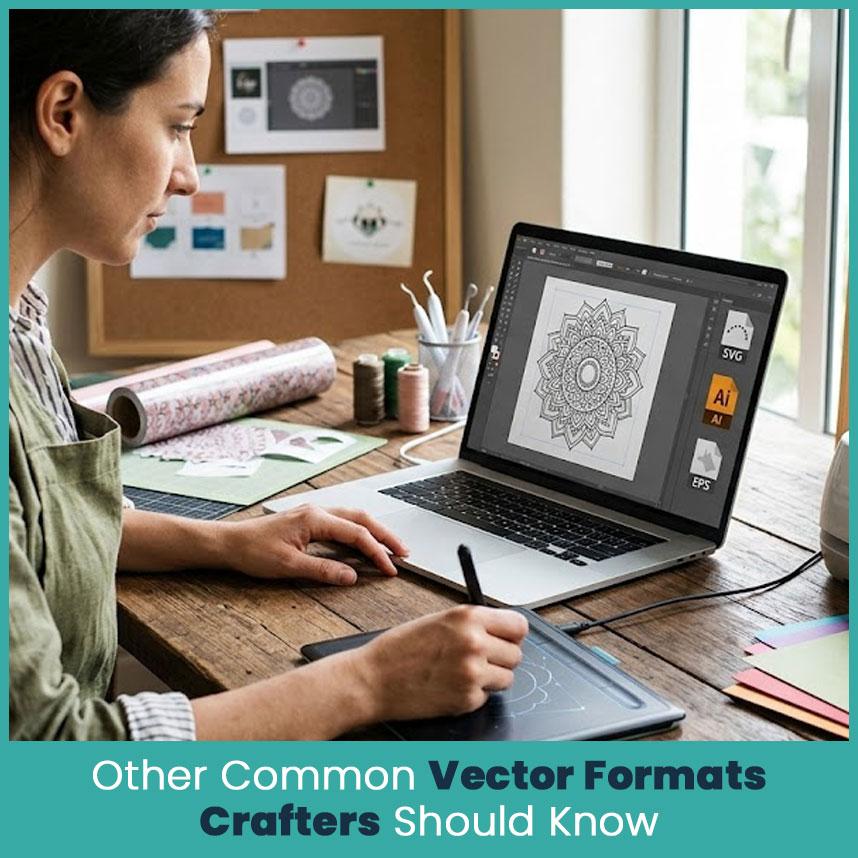
Besides SVG, three other formats come up often. You don’t need to learn everything about them, just know what each one is used for.
AI (Adobe Illustrator) Files
AI is the file format made by Adobe Illustrator, and most professional designers use it as their main format. It keeps every small design detail, like gradients and special effects, exactly as it was made.
The downside is that you need Illustrator, or something close to it, to open and edit the file properly without losing any quality.
EPS Files
Before SVG became popular with crafters, EPS was the format most people used to send designs back and forth. Some print shops and older sign businesses still ask for it.
It works with almost every design and printing program out there, which is the main reason it is still used today even though it is an older format.
PDF Vector Files
A PDF can be a vector file. Can be, not always is. Some PDFs are really just flattened images pretending to be vector art.
A genuine vector PDF keeps those scalable paths intact underneath, which is exactly why print on demand platforms often accept them for product art that needs to print sharply.
SVG vs AI vs EPS: Key Differences
Here is a simple comparison so you know which format to pick.
|
Format |
Best For |
Editable In |
File Size |
Machine Compatibility |
|
SVG |
Cutting machines, web, POD |
Inkscape, Illustrator, Silhouette Studio |
Small |
Excellent for Cricut/Silhouette |
|
AI |
Professional design, complex art |
Adobe Illustrator only |
Medium to large |
Limited, needs conversion |
|
EPS |
Print shops, legacy handoff |
Illustrator, CorelDRAW, older tools |
Medium |
Good for print, not cutting machines |
|
|
Print-ready product art |
Illustrator, Acrobat, some free tools |
Varies |
Good for print, needs checking for true vector |
When SVG is the Better Choice?
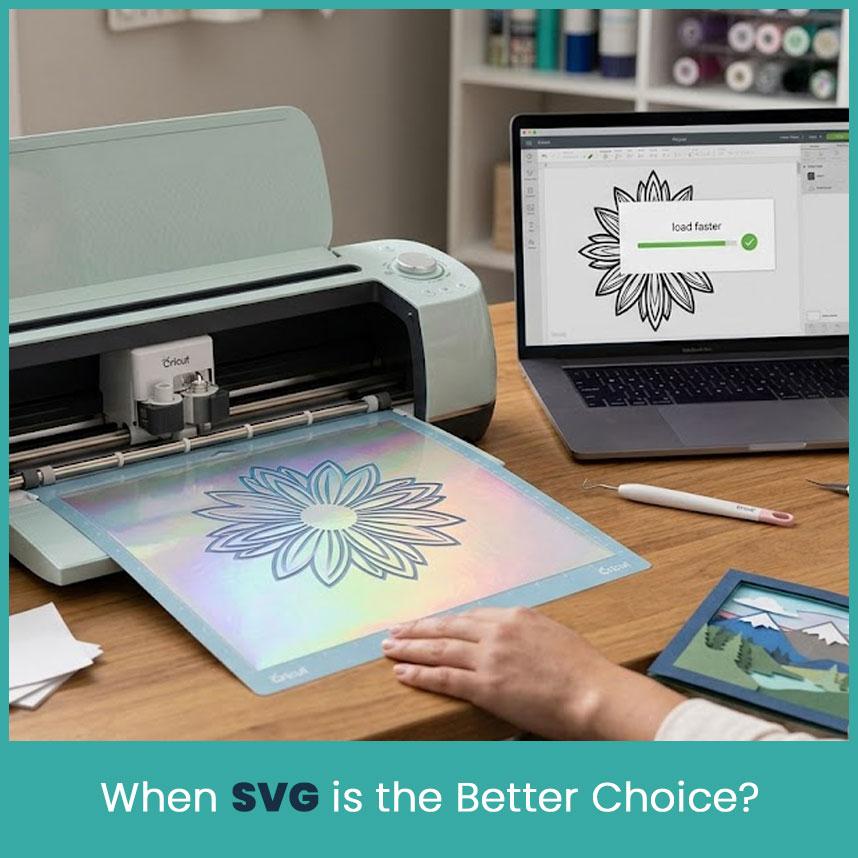
Use SVG when you need something quick and simple that works well with most craft tools. That covers most of what a craft business actually needs on a daily basis.
Cutting vinyl decals, engraving a simple shape, making layered paper crafts, SVG handles all of these without any trouble.
One more thing people forget, SVG files also load faster on websites compared to a large AI file. If you sell products online or run ads, that faster loading speed can make a real difference for your customers.
When Other Vector Formats Make More Sense?
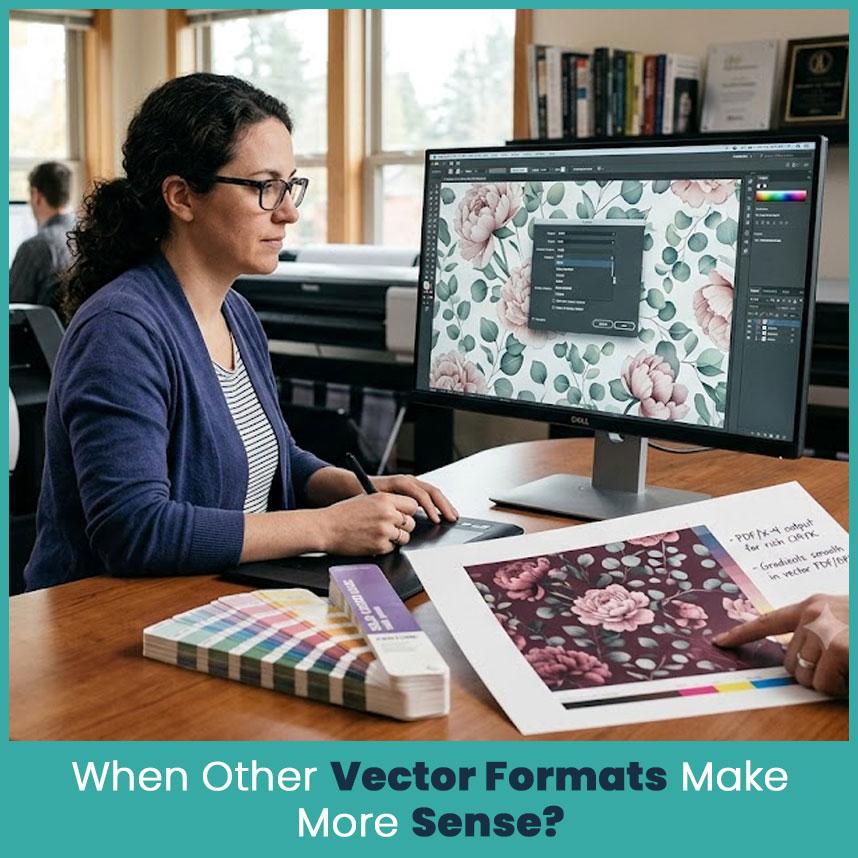
SVG is not always the right choice though. If a print shop needs exact colors and CMYK settings for printing, EPS or a true vector PDF will usually give better results than SVG.
The same goes for detailed artwork with gradients or shading effects. That kind of work usually needs to stay in AI format until you are ready for the final export.
I ran into this myself with a client's floral design. It was a beautiful AI file with smooth color blending, but when I converted it to SVG, some of that smooth blending got lost. What worked better was finishing the design fully in AI first, then exporting to SVG only at the very last step, right before cutting.
SVG Compatibility with Cutting Machines and Design Software
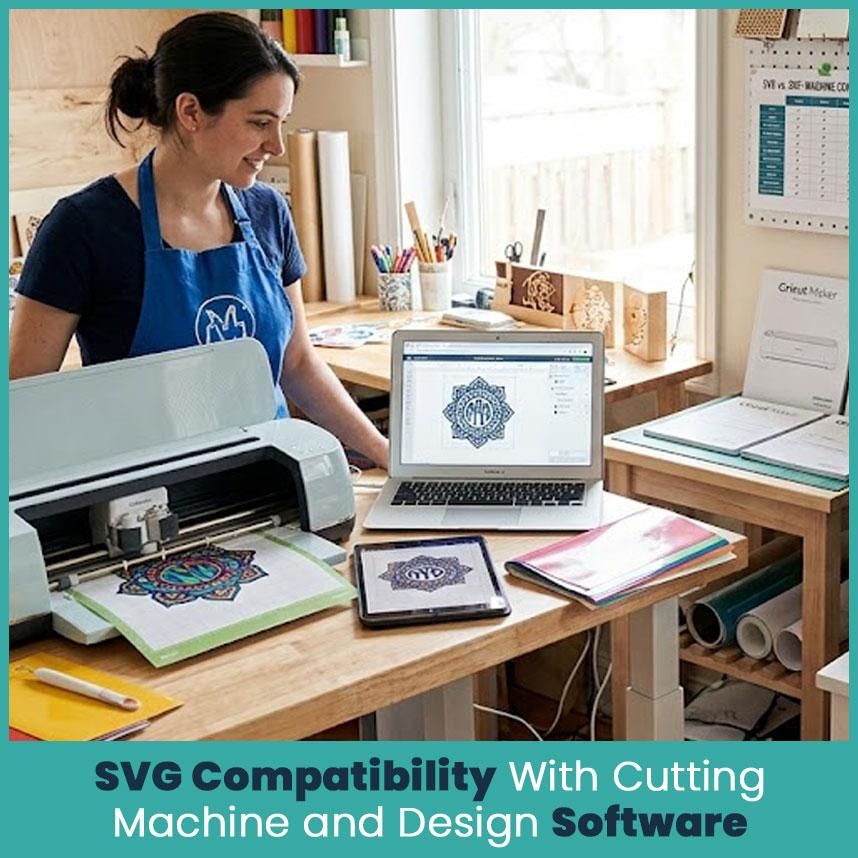
Cricut Design Space and Silhouette Studio both open SVG files right away. No extra steps, just upload and go.
Laser cutters and CNC machines work a bit differently though. Many of them prefer DXF files instead of SVG, since DXF is created specifically for machine cutting paths. Here is what matters:
-
Most home laser cutters, like Glowforge, do accept SVG directly.
-
Industrial or older CNC machines need the file converted to DXF first.
-
Always check your machine's manual before uploading, since file support varies a lot between brands.
Basically, if your machine software gives you an error on an SVG upload, converting it to DXF using a program like Inkscape usually solves the problem.
Common Mistakes Crafters Make With Vector Files
These are the mistakes I see happen again and again:
-
Trying to open an AI file directly in Cricut Design Space, which does not support it.
-
Adding too many tiny, detailed lines in an SVG that a cutting blade can’t follow.
-
Forgetting to check color mode, RGB works fine for cutting but print shops usually need CMYK.
-
Sending a low quality raster image and expecting the print shop to "just vectorize it" for free.
How to Convert Between Vector Formats the Right Way?
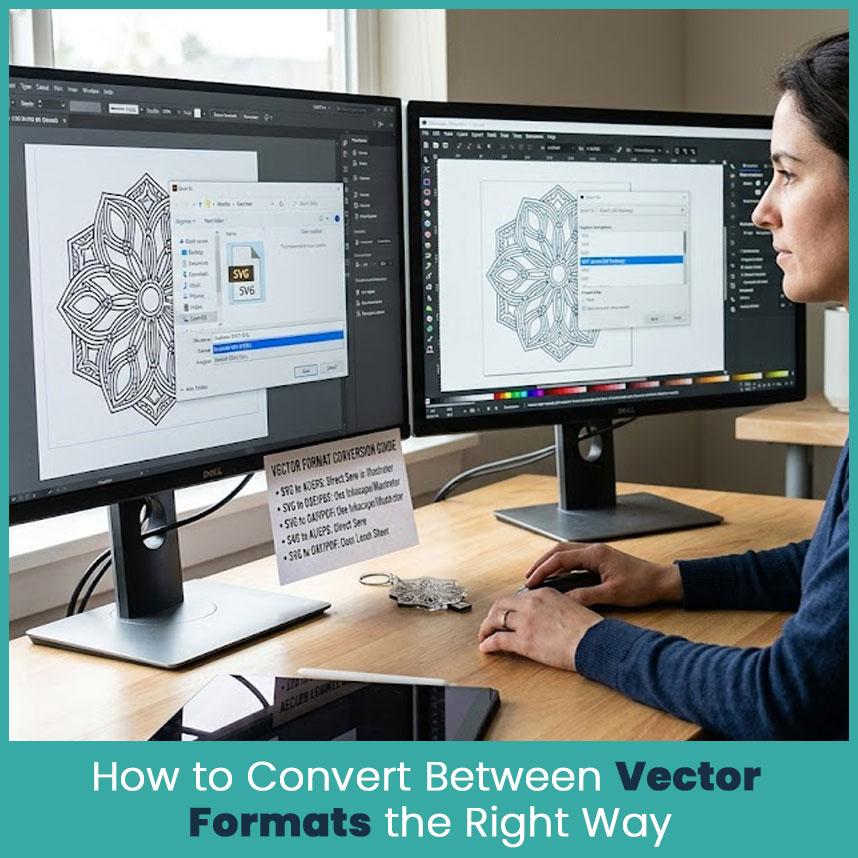
Converting between formats is easier than it sounds once you know the right tool for each job.
-
SVG to AI or EPS, just open and save the file directly in Illustrator, no extra tool needed.
-
SVG to PDF, most vector editors, including free ones like Inkscape, can export straight to PDF.
-
SVG to DXF, Inkscape can handle this too, through its export or save as option, which is handy for laser cutters and CNC machines.
By the way, some crafters also ask about convert SVG to PES when they want to move a vinyl or paper design over to an embroidery machine. That is a separate process altogether, since PES is a stitch format, not a vector format, and it needs dedicated digitizing software rather than a simple export.
Whichever direction you're converting, always open the new file afterward and check the shapes closely. Sometimes a curve or a tiny detail shifts slightly during conversion, and it is much easier to fix that on screen than after the material is already cut.
Choosing the Right File Format for Your Craft Business
In the end, the right format depends on where your design is going next.
-
Going to a cutting machine like Cricut or Silhouette, use SVG.
-
Going to a laser cutter or CNC machine, check if it needs DXF instead.
-
Going to a print shop or a print on demand product, use EPS or a true vector PDF.
Over time, you will not even have to think about this, it just becomes part of how you work. Keep your original files in AI or SVG so they stay easy to edit, and only export to the format each specific project actually needs.
FAQs
1. Is an svg a vector file?
Yes, SVG is one type of vector file, not the only kind. AI, EPS, and PDF are also vector formats, each made for different software.
2. Can I use an SVG file with my Cricut or Silhouette machine?
Yes, both Cricut Design Space and Silhouette Studio open SVG files directly, no conversion needed.
3. What's the difference between SVG and AI files?
SVG is light and simple, great for cutting machines. AI is Illustrator's own format, made for more detailed, professional design work.
4. Do I need Adobe Illustrator to open a vector file?
Not always. SVG, EPS & other files often open fine in free tools like Inkscape, but real AI files usually need Illustrator for full editing.
5. Can a vector file be converted to SVG without losing quality?
Yes, since both are based on math, not pixels. Complex effects like gradients might need a small manual fix after converting.
6. Which vector format is best for print on demand products?
A true vector PDF or EPS usually works best for print shops, since they keep the color accuracy needed for clear product printing.
7. Why do some vector files look different when opened in different software?
Different programs display fonts, gradients, and effects a little differently, so a file made in Illustrator might not look exactly the same when opened in a free program like Inkscape.
Author Bio
Matthew Davis
Senior Embroidery Digitizer
I'm Matthew Davis, a skilled embroidery digitizer with more than 15 years of practical experience. I specialize in logo digitizing, 3D puff embroidery designs, applique digitizing, custom embroidery digitizing, and working with difficult fabrics. Over the years, I have worked with different fashion brands and production teams worldwide. I always share simple tips and useful techniques to help both beginners and businesses improve their embroidery work.

 English
 Arabic
 French
 Portuguese
 Deutsch
 Turkish
 Dutch
Dutch
 Italiano
 Russian
 Romaian
 Portuguese (Brazil)
 Greek
Greek
