


How to Check Memory Usage on Mac: View RAM Usage and Performance
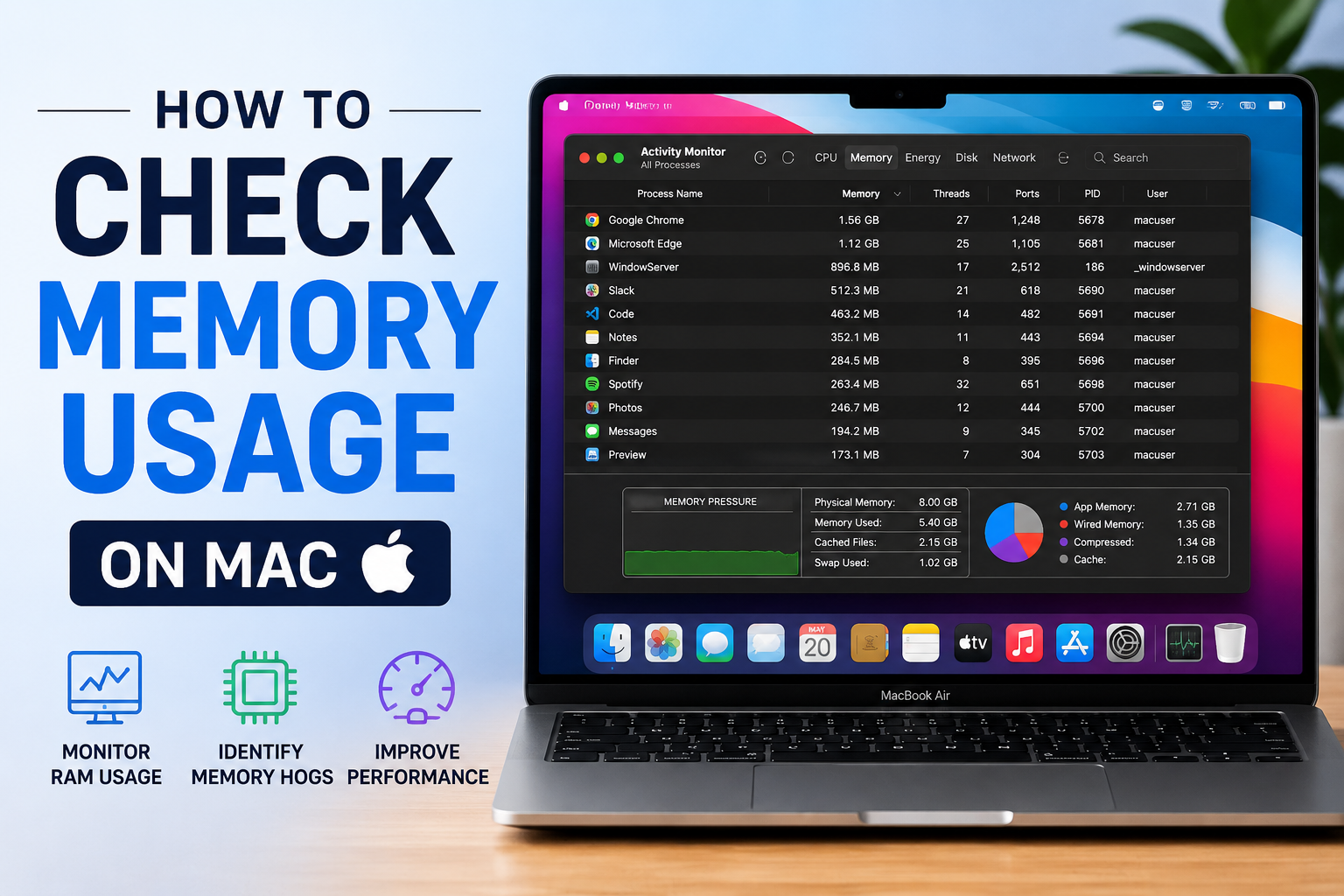
If you suddenly see that different applications on your Mac start running slowly, then this might be a glaring sign of the fact that your RAM is depleting. To avoid such issues, it is always essential to see your RAM usage on your device and adjust it according to your needs and preferences.
The Activity Monitor on your Mac allows people to check their RAM usage, and if you are also wondering how you can view RAM usage Mac, then this article will ensure that you have all the information regarding it.
What is the meaning of RAM usage on Mac?
RAM usage on Mac is basically about how much memory your Mac has been chewing up while it does its normal thing. This can mean the operating system, any apps you have running, and even the extra background chores. RAM acts as a temporary place where your information sits so your Mac can grab it quickly, and yeah, that helps keep things snappy and smooth overall.
When you open different applications, each one tends to request its own chunk of RAM so it can work properly. That’s why the RAM usage number is not really fixed; it changes all the time depending on what you’re using and how heavy those tools are. Like, if you’re running video editing software or graphic design apps, they usually take noticeably more memory than something lighter, say a plain text editor, or a browser with only a couple of tabs.
What is the process to check RAM usage on a Mac?
If you are interested in seeing Mac check memory usage, then you can use the instructions that we are giving here.
-
Open Activity Monitor using Spotlight search, then click on the Memory tab.
-
Scroll down to the bottom part of the window and look for the Memory Pressure section (or box). There you’ll see useful details about what your Mac is doing memory-wise, including things like App Memory, Physical Memory, and Memory Used.
Keeping an eye on RAM usage can help you tune performance, especially if your Mac feels sluggish. Also, explore the website Datarecovee to learn about other tools that you can use.

 English
 Arabic
 French
 Spanish
 Portuguese
 Deutsch
 Turkish
 Dutch
Dutch
 Italiano
 Romaian
 Portuguese (Brazil)
 Greek
Greek
