


How to Check SSD Health and Improve Drive Lifespan
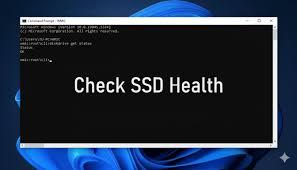
Solid State Drives (SSDs) have become the preferred storage solution for modern computers because they offer faster speeds, better reliability, and improved performance compared to traditional hard drives. However, like any storage device, SSDs have a limited lifespan. Understanding How to Check SSD Health can help you monitor performance, prevent data loss, and extend the life of your drive.
In this guide, you will learn how SSDs work, how to monitor their condition, and the best practices for maintaining them over the long term.
Why SSD Health Matters
An SSD stores data using flash memory cells. Each memory cell can only handle a certain number of write and erase cycles before it starts to wear out. Although modern SSDs are designed to last for many years, regular monitoring is still important.
Checking SSD health helps you:
- Detect potential failures early
- Prevent unexpected data loss
- Maintain system performance
- Plan timely upgrades or replacements
- Increase the lifespan of your storage device
Understanding How to Check SSD Health allows users to take proactive measures before serious problems occur.
Common Signs of SSD Wear
Before diving into monitoring tools, it is useful to recognize the warning signs of SSD degradation.
Slow Performance
If your computer suddenly takes longer to boot or applications become sluggish, your SSD may be experiencing wear or storage issues.
Frequent System Crashes
Unexpected freezes, blue screen errors, or application crashes can sometimes indicate storage-related problems.
Read and Write Errors
Files failing to save properly or becoming corrupted may be a sign that certain memory cells are wearing out.
Drive Becoming Read-Only
Some SSDs automatically switch to read-only mode when they detect severe wear, helping protect existing data.
Built-In Methods to Monitor SSD Health
Windows and other operating systems provide several tools that can help assess SSD condition.
Using Command Prompt in Windows
One of the easiest ways to check drive status is through Command Prompt.
Steps:
- Open Command Prompt as Administrator.
-
Type:
wmic diskdrive get status - Press Enter.
If the result shows "OK," your drive is functioning normally. However, this basic test does not provide detailed health information.
This method is often the first step when learning How to Check SSD Health on a Windows system.
Using Windows Drive Optimization
Windows includes a built-in optimization utility that displays drive information and ensures SSDs are properly maintained.
To access it:
- Search for "Defragment and Optimize Drives."
- Open the utility.
- Select your SSD.
- Review the drive status.
Windows automatically performs TRIM operations, which help maintain SSD efficiency.
Using Manufacturer Software
Most SSD manufacturers provide dedicated monitoring tools with advanced diagnostic features.
Popular SSD Management Tools
Some common examples include:
- Samsung Magician
- Crucial Storage Executive
- Kingston SSD Manager
- WD Dashboard
- Intel Memory and Storage Tool
These programs display important health metrics such as:
- Remaining lifespan
- Temperature
- Total data written
- Firmware version
- Performance statistics
Using manufacturer software is one of the most accurate ways to understand How to Check SSD Health and monitor long-term performance.
Understanding SMART Data
SMART stands for Self-Monitoring, Analysis, and Reporting Technology. It is built into most modern SSDs and provides detailed information about drive condition.
Important SMART Attributes
Percentage Used
Shows how much of the SSD's expected lifespan has been consumed.
Total Host Writes
Measures the total amount of data written to the drive throughout its lifetime.
Wear Leveling Count
Indicates how evenly write operations are distributed across memory cells.
Bad Block Count
Tracks unusable storage blocks that have been retired due to wear.
Reviewing SMART data regularly is a critical part of How to Check SSD Health effectively.
Best Practices to Improve SSD Lifespan
Monitoring health is important, but preventing excessive wear is equally valuable.
Keep Adequate Free Space
SSDs perform best when they have available free space. Try to maintain at least 10–20% free capacity.
When storage becomes nearly full, performance may decline and wear can increase.
Enable TRIM
TRIM helps the operating system inform the SSD which data blocks are no longer needed.
Benefits include:
- Improved performance
- Better storage efficiency
- Reduced unnecessary write operations
Modern versions of Windows usually enable TRIM automatically.
Avoid Unnecessary Writes
Reducing excessive write activity can help prolong SSD life.
Examples include:
- Limiting temporary file generation
- Avoiding constant large file transfers
- Managing download folders efficiently
Small adjustments can significantly reduce wear over time.
Update SSD Firmware
Manufacturers regularly release firmware updates that improve stability, compatibility, and performance.
Checking for updates through the manufacturer's utility can help maintain optimal operation.
Protect SSDs from Heat
Temperature plays an important role in SSD longevity.
Maintain Proper Airflow
Ensure your computer has adequate ventilation and cooling.
Monitor Drive Temperature
Many monitoring tools display real-time SSD temperatures. Consistently high temperatures can accelerate wear and reduce reliability.
For most consumer SSDs, operating within manufacturer-recommended temperature ranges is ideal.
Backup Your Data Regularly
Even healthy SSDs can fail unexpectedly due to power issues, hardware defects, or accidental damage.
Create Automatic Backups
Regular backups ensure important files remain protected.
Consider:
- External hard drives
- Cloud storage services
- Network-attached storage solutions
A backup strategy is one of the most effective ways to protect against data loss regardless of SSD condition.
When Should You Replace an SSD?
Most modern SSDs last many years under normal usage. However, replacement should be considered if you notice:
- Rapidly declining health percentages
- Increasing bad block counts
- Frequent data corruption
- Persistent system crashes
- Manufacturer warnings about drive failure
Replacing an aging SSD before complete failure can prevent downtime and protect valuable information.
Conclusion
Learning How to Check SSD Health is essential for maintaining system reliability and protecting important data. Regular monitoring through operating system tools, SMART diagnostics, and manufacturer software can help identify potential issues before they become serious. By understanding How to Check SSD Health, keeping firmware updated, enabling TRIM, managing storage space, and reducing unnecessary writes, users can significantly extend drive lifespan. Consistent monitoring and preventive maintenance ensure that your SSD continues delivering fast and dependable performance for years to come.

 English
 Arabic
 French
 Spanish
 Portuguese
 Deutsch
 Turkish
 Italiano
 Russian
 Romaian
 Portuguese (Brazil)
 Greek
Greek
