


Why Does CarPlay Keep Disconnecting in My Mercedes? Solutions for Australian Drivers
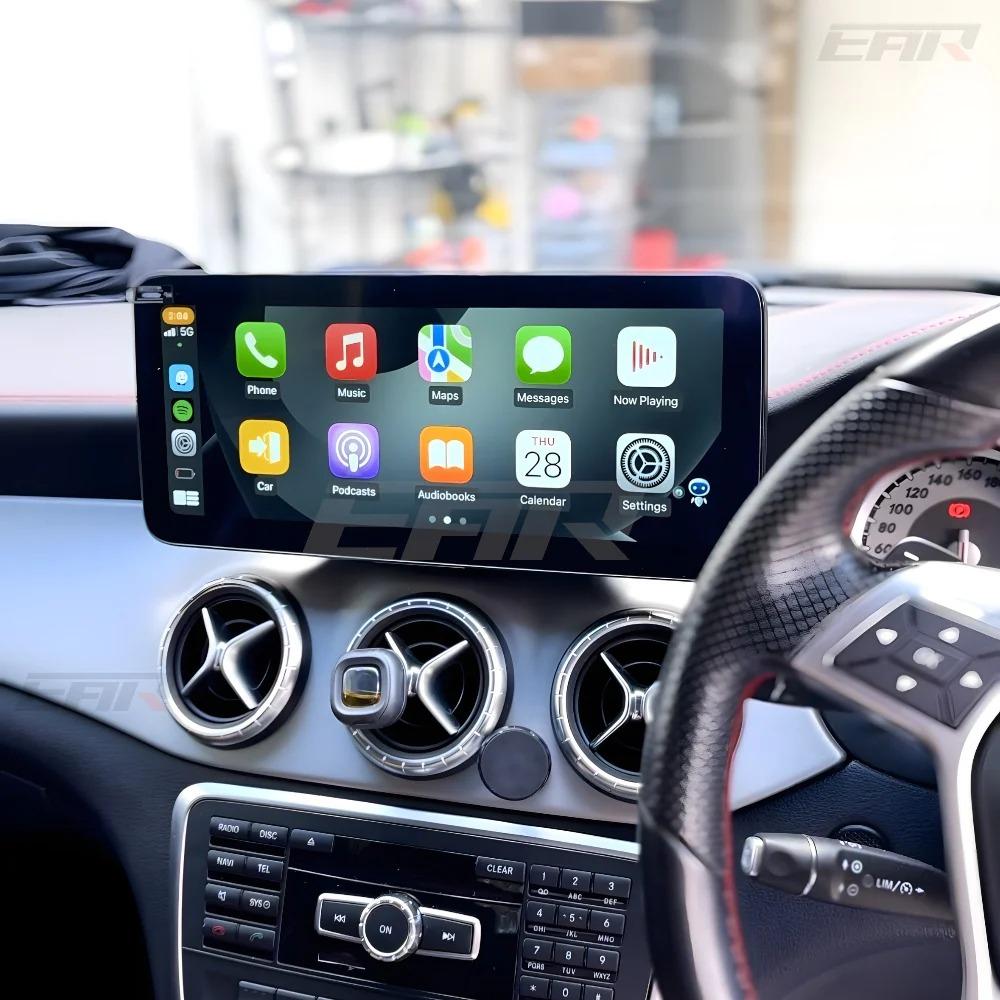
Mercedes-Benz vehicles bring luxury and advanced technology to Australian roads, from the bustling streets of Sydney to the open highways of the Outback. Yet many drivers face a frustrating issue: Apple CarPlay repeatedly disconnects mid-drive. This interruption disrupts navigation, music, and calls, turning a smooth commute into a hassle. As someone who understands the demands of driving in Australia's diverse conditions, you deserve reliable connectivity. In this post, we discuss the root causes of CarPlay disconnections in Mercedes models and provide proven, step-by-step solutions to restore seamless performance.
Common Causes of CarPlay Disconnections in Mercedes
CarPlay relies on a stable Bluetooth and Wi-Fi connection between your iPhone and the vehicle's infotainment system, primarily through the COMAND or MBUX systems in Mercedes cars. Public support resources from Apple and Mercedes-Benz highlight several triggers for disconnections, especially relevant to Australian drivers dealing with variable network coverage and heat.
Overheating stands out as a frequent culprit. Australia's summer temperatures can push cabin interiors above 50°C, causing your iPhone or the car's head unit to throttle performance for safety. Apple notes that devices automatically reduce activity in high heat to prevent damage, which can sever CarPlay links. Similarly, weak Bluetooth signals arise from interference. In urban areas like Melbourne or Brisbane, dense traffic and nearby electronics create signal clutter, weakening the pairing.
Cable quality plays a key role too. USB connections power CarPlay and handle data transfer, but low-grade cables fray or lose conductivity over time, leading to dropouts. Mercedes-Benz recommends genuine Lightning to USB cables for optimal compatibility. Software glitches also contribute. Outdated iOS versions or infotainment firmware mismatches cause instability, as confirmed in Apple's troubleshooting guides. Battery drain on your iPhone exacerbates this during long drives, like those across the Nullarbor Plain, prompting the phone to prioritise power conservation over connectivity.
Environmental factors unique to Australia amplify these issues. Dust from rural roads or humidity in coastal regions can affect ports and cables. Phone cases with metal components block signals, a point raised in Mercedes forums and Apple support pages.
Step-by-Step Troubleshooting for Reliable CarPlay
Fixing CarPlay disconnections starts with simple checks and escalates to targeted resets. Follow these steps in order for the best results.
1. Verify Connections and Cables
Begin with the basics. Ensure your iPhone is unlocked and CarPlay is enabled in Settings > General > CarPlay. Use a high-quality, Apple-certified Lightning or USB-C cable, depending on your model. Inspect for damage: bent pins or frayed wires interrupt data flow. Australian drivers should clean USB ports regularly to remove dust from unsealed roads. Plug directly into the car's USB port, avoiding adapters, which Mercedes-Benz advises against for stability.
Test Bluetooth separately. Go to your Mercedes settings, forget the CarPlay device, and re-pair via iPhone Settings > Bluetooth. This clears corrupted pairings.
2. Manage Heat and Power
Park in shade or use sunshades during hot days to keep your iPhone below 35°C. Apple's guidelines specify that excessive heat triggers protective shutdowns. Enable Low Power Mode only if needed, but disable it for CarPlay sessions, as it limits background processes. Charge your phone via the car's USB while driving to prevent battery-induced drops.
3. Update Software
Outdated software is a top disconnection cause. Update your iPhone to the latest iOS through Settings > General > Software Update. For Mercedes, check for MBUX or COMAND updates via the vehicle's menu or the Mercedes me app. Apple releases CarPlay fixes in iOS updates, improving compatibility with Mercedes systems. Restart both devices after updates: hold the power button on your iPhone until the slider appears, then force restart Mercedes infotainment by pressing the power knob for 10 seconds.
4. Reset Network Settings
Persistent issues often stem from network conflicts. On your iPhone, navigate to Settings > General > Transfer or Reset iPhone > Reset > Reset Network Settings. This clears saved Wi-Fi and Bluetooth data without erasing apps. Reconnect to CarPlay afterwards. For the car, perform a full infotainment reset per your model's manual, typically holding the volume and eject buttons simultaneously.
Advanced Solutions for Stubborn Disconnects
If basic steps fail, dive deeper.
Wireless CarPlay adapters offer a cable-free upgrade for supported Mercedes models. These devices bridge Bluetooth to Wi-Fi, reducing cable wear and interference. Public reviews and Apple specs confirm they maintain stable connections up to 10 meters, ideal for larger SUVs like the GLE.
Consider Mercedes CarPlay upgrades from trusted specialists. They provide plug-and-play modules that enhance compatibility, supporting the latest iOS features without voiding warranties.
Disable VPNs or background apps on your iPhone, as they hog bandwidth. Apple's support pages list Restrictions in Screen Time to limit draining apps during drives. For fleet or high-mileage users, professional diagnostics at Mercedes service centres pinpoint hardware faults like faulty USB modules.
Preventing Future Disconnects on Australian Roads
Prevention beats repeated fixes. Invest in a dedicated CarPlay cable stored in your glovebox, and use a mount that positions your phone away from heat vents. Schedule regular software checks, especially before long trips. Australian drivers benefit from apps like Mercedes me for remote diagnostics.
In varied climates from Darwin's tropics to Tasmania's chill, protective cases without metal shielding preserve signals. Monitor iPhone battery health via Settings > Battery; replace if below 80% capacity, as degraded batteries cause erratic behaviour.
Expert Tips Tailored to Mercedes Models
Different Mercedes lines handle CarPlay uniquely. In A-Class and C-Class with MBUX, prioritise wired connections for stability. E-Class and S-Class users report success with firmware updates addressing wireless bugs. GLA and GLC SUVs, popular in Australia for their versatility, benefit from elevated antenna placements in adapters.
Always consult your owner's manual for model-specific ports, some use data-only USB-A, others USB-C.
Conclusion: Drive Connected with Confidence
CarPlay disconnections in your Mercedes don't have to derail your journey. By addressing cables, heat, software, and interference with these proven steps, Australian drivers can enjoy uninterrupted access to maps, podcasts, and more. For superior reliability, explore aftermarket enhancements that fit seamlessly into your luxury ride.
Nevera Auto specialises in premium upgrades designed for Mercedes owners Down Under. Explore their ccollection right away.

 English
 Arabic
 French
 Spanish
 Portuguese
 Deutsch
 Turkish
 Italiano
 Russian
 Romaian
 Portuguese (Brazil)
 Greek
Greek
