


How to Save Chatbot Conversation as Text? Easy Methods
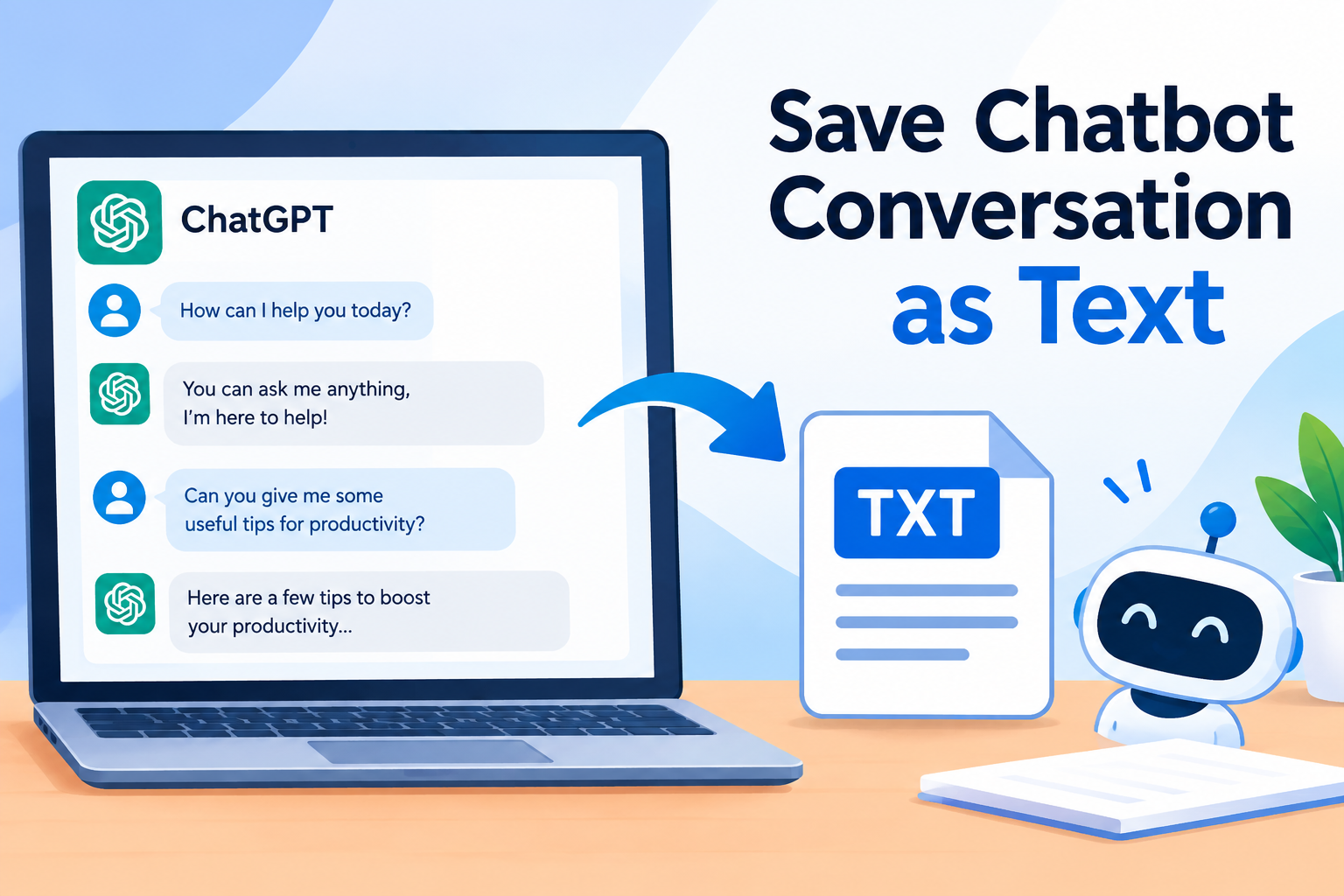
Chatbot conversations often contain useful information that you may want to keep for future reference. Whether it is an important answer, research discussion, customer interaction, or personal conversation, saving the chat as a text file makes the information easier to store, search, edit, and share.
If you are wondering how to save chatbot conversation as text, there are several ways to do it. You can copy the conversation manually, use the browser's save or print options, or use a dedicated conversion tool to turn an exported chatbot conversation into a TXT file.
This guide explains the most practical ways to export ChatGPT chat to text file while keeping the conversation accessible for offline use.
Why Save a Chatbot Conversation as a Text File? Key Benefits Explained
Saving chatbot conversations as TXT files offers several advantages, especially when you need to maintain a searchable record of lengthy discussions.
-
Offline Access: Open saved conversations without an internet connection.
-
Easy Search: Quickly find specific words, questions, or responses using standard text search.
-
Simple Editing: Modify, organize, or add notes to the conversation when required.
-
Better Documentation: Maintain chatbot responses as records for research, projects, or work.
-
Easy Sharing: Text files can be shared through email, messaging apps, or cloud storage.
-
Long-Term Archiving: Keep important chatbot discussions safely stored for future reference.
-
Lightweight Storage: TXT files generally require very little storage space compared with screenshots or other formats.
Overall, that is why users need to save AI-generated responses in plain text format.
Read More: How to Convert ChatGPT Chat to PDF Document Securely?
How to Save Chatbot Conversation as Text?
The right method depends on how the chatbot stores or provides your conversation data. For a short conversation, manual copying can be enough. However, longer chats or exported chatbot data may require a more convenient approach. Here are the common methods you can use.
Method 1: Copy and Paste the Chatbot Conversation into a TXT File
The simplest way to save a chatbot conversation as text is to copy the chat and paste it into a text editor.
Steps to Save Chatbot Chat Manually
-
Open the chatbot conversation you want to save.
-
Select the required conversation text.
-
Copy the selected content.
-
Open Notepad or another plain-text editor.
-
Paste the copied conversation.
-
Remove unnecessary content if required.
-
Click File > Save As.
-
Select .txt as the file format.
-
Enter a suitable file name and save the file.
This method works well for short conversations. However, manually copying a lengthy chatbot discussion can be time-consuming and may require additional formatting or cleanup.
Limitations of the Manual Approach
-
Time-Consuming: Copying lengthy chatbot conversations can take considerable time.
-
Not Suitable for Bulk Chats: Saving multiple conversations individually becomes tedious.
-
Formatting Issues: Chat structure, spacing, or message formatting may not remain intact after copying.
-
Risk of Missing Content: Long conversations can lead to accidentally skipping messages during selection and copying.
-
Repetitive Work: The same copy, paste, and save process must be repeated for every conversation.
-
Limited Data Handling: Manual copying is less practical when chatbot exports contain large amounts of structured data.
-
Requires Manual Cleanup: Unwanted text, interface elements, or extra spaces may need to be removed before saving.
-
Difficult to Organize: Managing numerous individually created TXT files can become cumbersome.
Method 2: Convert Exported Chatbot Data to TXT Automatically
If your chatbot provides conversations in JSON or another structured format, an automated converter can make the process easier. The SysTools JSON Chat Converter Tool can be used to convert supported JSON chatbot data into readable formats, including TXT, without manually copying lengthy conversations.
This approach is useful when you have large chatbot exports and want to turn structured conversation data into an easily readable text file. Instead of opening the exported data and manually extracting messages, you can process the file through the converter and save the resulting conversation in TXT format.
Steps to Convert Chatbot Conversation to TXT
-
Export the chatbot conversation or chat data in JSON format.
-
Open the tool on your operating system.
-
Add the exported JSON file.
-
Preview the available conversation data.
-
Select TXT as the output format.
-
Choose the destination location & start the conversion.
The automated approach is particularly useful for lengthy conversations, multiple files, and users who want a cleaner way to preserve chatbot discussions as searchable text.
Final Thoughts!
Knowing how to save chatbot conversation as text can help you preserve valuable AI discussions for research, documentation, sharing, and offline access. For short chats, copying and pasting the conversation into Notepad is the easiest solution. When dealing with exported JSON data or lengthy conversations, an automated conversion method can make the process faster and more convenient.
Choose the approach based on the amount of data you have and how often you need to save chatbot conversations. A well-organized TXT archive can make your important AI conversations easier to search, manage, and revisit whenever needed.
.

 English
 Arabic
 French
 Spanish
 Portuguese
 Turkish
 Dutch
Dutch
 Italiano
 Russian
 Romaian
 Portuguese (Brazil)
 Greek
Greek
