


How to Convert Large OLM Files to MBOX? A Complete Guide
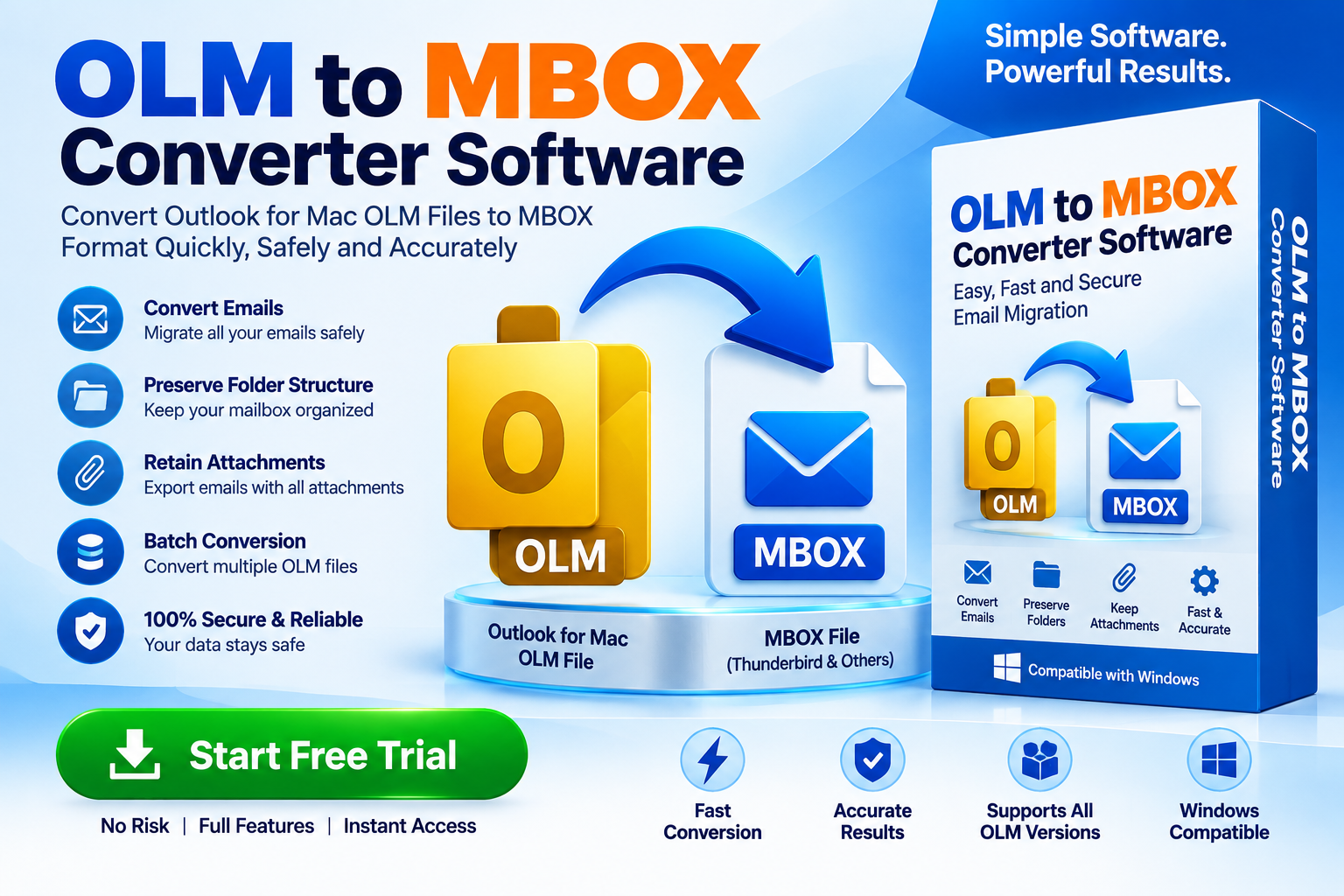
Large OLM files can become difficult to manage when you need to move Outlook for Mac email data to another application. An OLM archive may contain thousands of emails, attachments, folders, contacts, and other mailbox information. When the destination application uses the MBOX format, users need a reliable way to perform the conversion without losing important data.
So, how can you convert a large OLM file to MBOX safely and efficiently?
Quick Answer: To convert a large OLM file to MBOX, use a compatible OLM to MBOX Converter Software that can process large archives, preserve mailbox information, support selective or batch conversion, and provide a way to verify the resulting MBOX files. Always create a backup of the original OLM file before starting.
This guide explains the process from a beginner-friendly perspective while also covering technical considerations for large mailbox migrations.
What Is an OLM File?
An OLM file is an archive format associated with Microsoft Outlook for Mac. It can contain email messages and other Outlook data exported from the Mac version of Outlook.
A large OLM archive may contain:
- Inbox messages
- Sent emails
- Drafts
- Deleted items
- Custom folders
- Email attachments
- Contacts
- Calendar information
- Other archived mailbox data
When users move to an email application that works with MBOX, converting the OLM archive may be necessary.
What Is MBOX?
MBOX is a mailbox storage format used by several email applications.
Applications that work with MBOX can have their own import requirements, so the conversion process should consider both the source OLM file and the destination application.
The basic migration path is:
Large OLM → OLM Converter → MBOX → Destination Email Application
The objective is not simply to change the file extension. The mailbox data needs to be properly parsed and written into an MBOX-compatible structure.
Why Is Converting a Large OLM File Challenging?
Converting a small OLM archive can be relatively straightforward. Large archives introduce additional considerations.
Large Number of Messages
A large OLM file can contain thousands or even millions of individual messages.
Large Attachments
Attachments can significantly increase the total size of the mailbox.
Complex Folder Structures
Business mailboxes may contain numerous folders and nested folders.
Processing Time
The larger the source archive, the longer scanning and conversion may take.
Storage Requirements
The conversion process may require additional temporary and output storage.
System Resources
RAM, CPU performance, disk speed, and available storage can affect conversion performance.
For these reasons, large OLM migration should be planned rather than treated as a simple file conversion.
How to Convert Large OLM Files to MBOX
A dedicated OLM to MBOX Converter Software can simplify the process.
Step 1: Create a Backup of the OLM File
Before doing anything else, make a copy of the original OLM file.
For example:
Original: OutlookArchive.olm
Working Copy: OutlookArchive_Backup.olm
Perform the conversion using the working copy whenever possible.
This protects the original data if the conversion is interrupted or something goes wrong.
Step 2: Check Available Disk Space
Don't look only at the size of the OLM file.
The conversion may require space for:
- Temporary processing
- Extracted mailbox information
- MBOX output
- Attachments
- Additional converted files
For example, if your OLM archive is several gigabytes, make sure your computer has substantially more free storage than the source file size.
A lack of storage can cause conversion failures.
Step 3: Choose Large-File Compatible Software
When searching for an OLM to MBOX Converter for large files, look for features specifically relevant to large mailbox processing.
Important features include:
- Large OLM file support
- Batch conversion
- Selective folder conversion
- Attachment handling
- Folder preservation
- Preview
- Filtering
- Pause/resume
- Error reporting
- MBOX export
- Windows or Mac compatibility
Don't assume that every converter can handle a very large OLM file simply because it supports the OLM format.
Step 4: Load the OLM File
Open the converter and select the OLM archive.
The software may scan the archive and display its mailbox structure.
For a large file, scanning may take some time.
Avoid closing the application or shutting down the computer during the scanning process.
Step 5: Preview the Mailbox
If the software provides a preview option, inspect the mailbox before conversion.
Look for:
- Inbox
- Sent Items
- Important folders
- Attachments
- Custom folders
- Message counts
Previewing can help confirm that the application has successfully read the OLM structure.
Step 6: Select Only Required Folders
If you don't need the entire archive, selective conversion can be one of the most useful features for large OLM files.
For example, suppose a 20 GB OLM archive contains:
- 8 GB Inbox
- 6 GB Sent Items
- 4 GB project folders
- 2 GB old archive folders
If you only need the project folders, converting the entire archive may be unnecessary.
Selective conversion can reduce:
- Processing time
- Output size
- Storage requirements
- Post-conversion cleanup
Step 7: Choose MBOX as the Output Format
Select MBOX as the destination format.
Depending on the software, you may be able to select:
- Output folder
- Folder naming
- Individual mailboxes
- Destination location
Make sure you know where the converted files will be stored.
For a large migration, using a dedicated drive with sufficient free space can be useful.
Step 8: Start the Conversion
Start the OLM-to-MBOX conversion after confirming the settings.
For large files, don't be concerned if the process takes significant time.
The software may need to:
- Read the OLM structure.
- Extract individual messages.
- Process attachments.
- Convert message information.
- Build MBOX output.
- Write the resulting files to disk.
The exact workflow depends on the software.
Step 9: Monitor the Process
If the converter provides a progress window, monitor:
- Percentage completed
- Number of messages processed
- Current folder
- Errors or warnings
- Estimated remaining time
Avoid running unnecessarily intensive applications simultaneously, particularly when working with extremely large archives.
Step 10: Verify the MBOX Output
Never assume that conversion is successful simply because the software says "Completed."
Open the resulting MBOX file using the intended destination application and check several areas.
Verify:
- Email bodies
- Sender information
- Recipient information
- Dates
- Subject lines
- Attachments
- Folder organization
- Message counts
Test emails from different periods of the archive rather than checking only the newest messages.
How to Handle Extremely Large OLM Files
If the OLM archive is extremely large, consider dividing the migration into smaller sections.
For example:
OLM Archive
→ Inbox
→ Sent Items
→ 2023 Projects
→ 2024 Projects
→ 2025 Projects
Instead of processing everything at once, convert selected folders separately where the software supports this approach.
This can make troubleshooting easier if an individual folder contains problematic data.
Batch Conversion for Multiple OLM Files
Sometimes the problem isn't one large OLM file but several archives.
For example:
Archive-2021.olmArchive-2022.olmArchive-2023.olmArchive-2024.olm
A converter with batch OLM to MBOX conversion can process multiple source files without requiring the user to repeat every step manually.
Before using batch processing, confirm that the destination structure will remain organized.
Can You Convert Large OLM Files Without Outlook?
Some dedicated OLM-to-MBOX converters can process OLM files without Microsoft Outlook being installed.
This can be useful when:
- You have only the OLM archive.
- The original Mac is unavailable.
- Outlook for Mac is no longer installed.
- You want to perform the conversion on Windows.
However, this is a product-specific capability. Always verify the software's system requirements before purchasing.
What If the OLM File Is Corrupted?
A large OLM file may occasionally contain damaged or inaccessible data.
Possible symptoms include:
- Converter cannot open the file
- Scanning stops unexpectedly
- Certain folders cannot be read
- Conversion produces incomplete output
- Application crashes during processing
In this situation, first preserve the original file.
Don't repeatedly modify the source archive.
If the converter provides logging or error reports, review them to identify the problematic section.
For important business archives, consider using a recovery-capable product or professional data-recovery assistance rather than experimenting directly with the only copy.
How to Improve Large OLM Conversion Performance
Several practical steps can help make the process smoother.
Use an SSD
An SSD can provide faster read/write performance than a traditional hard drive.
Close Unnecessary Applications
Freeing CPU and memory resources can help during intensive conversion.
Keep the Computer Powered
Large mailbox conversion can take time. Avoid allowing the system to shut down or enter an unexpected power-saving state.
Maintain Adequate Storage
Ensure the destination drive has sufficient free space.
Convert Selectively
If you don't need the complete archive, process only the required folders.
Keep Software Updated
Use a current version of the converter that officially supports your operating system.
Free vs. Professional OLM to MBOX Converter
Users often search for a free OLM to MBOX converter for large files. Free tools can be useful for testing, but large archives may expose limitations.
Possible restrictions include:
- Maximum file size
- Limited number of messages
- Limited folder conversion
- No batch processing
- Reduced technical support
- Limited attachment handling
Professional software may provide additional functionality designed for larger migration projects.
Before buying, use a trial or demo version when available and test it with a copy of your actual OLM file.
Common Mistakes to Avoid
Don't Change the File Extension
Changing .olm to .mbox does not convert the mailbox.
Don't Delete the Original
Keep the source OLM until the migration has been fully verified.
Don't Ignore Attachments
Check attachments separately because they are often critical to business correspondence.
Don't Convert Without Enough Storage
Large output files can require substantial disk space.
Don't Trust Unsupported Software Claims
Always check the vendor's actual supported file sizes, OLM versions, operating systems, and output formats.
Frequently Asked Questions
How do I convert a large OLM file to MBOX?
Use an OLM-to-MBOX converter that supports large archives. Load the OLM file, scan and preview its contents, select required folders, choose MBOX as the output, start conversion, and verify the resulting files.
Can I convert a 10 GB or larger OLM file?
It depends on the software and your computer. Check the converter's documented file-size support and make sure sufficient storage is available.
Can I convert OLM to MBOX without Outlook?
Yes, some dedicated converters support standalone OLM processing without Outlook.
Does conversion preserve attachments?
Many converters are designed to preserve attachments, but you should verify this feature for the specific software you choose.
How long does large OLM conversion take?
There is no universal time. Processing depends on file size, number of messages, attachments, storage speed, CPU performance, and the software's architecture.
Should I convert the entire OLM file at once?
Not necessarily. For very large archives, selective folder conversion can make the process easier to manage.
Conclusion
Converting a large OLM file to MBOX requires more planning than converting a small mailbox. The size of the archive, number of messages, attachments, folder structure, available storage, computer performance, and capabilities of the converter can all affect the migration.
A suitable OLM to MBOX Converter Software can simplify the process by providing large-file support, selective conversion, batch processing, attachment handling, folder preservation, and preview functionality.
The safest approach is to back up the original OLM file, verify available storage, test the converter with a copy, convert required folders, monitor the process, and thoroughly validate the resulting MBOX files before considering the migration complete.
Whether you're migrating a personal archive or handling a large business mailbox, a structured conversion strategy can reduce the risk of missing emails and make the transition to an MBOX-compatible environment much more manageable.

 English
 Arabic
 French
 Spanish
 Portuguese
 Deutsch
 Dutch
Dutch
 Italiano
 Russian
 Romaian
 Portuguese (Brazil)
 Greek
Greek
