


QuickBooks Desktop Won’t Install: Complete Troubleshooting Guide
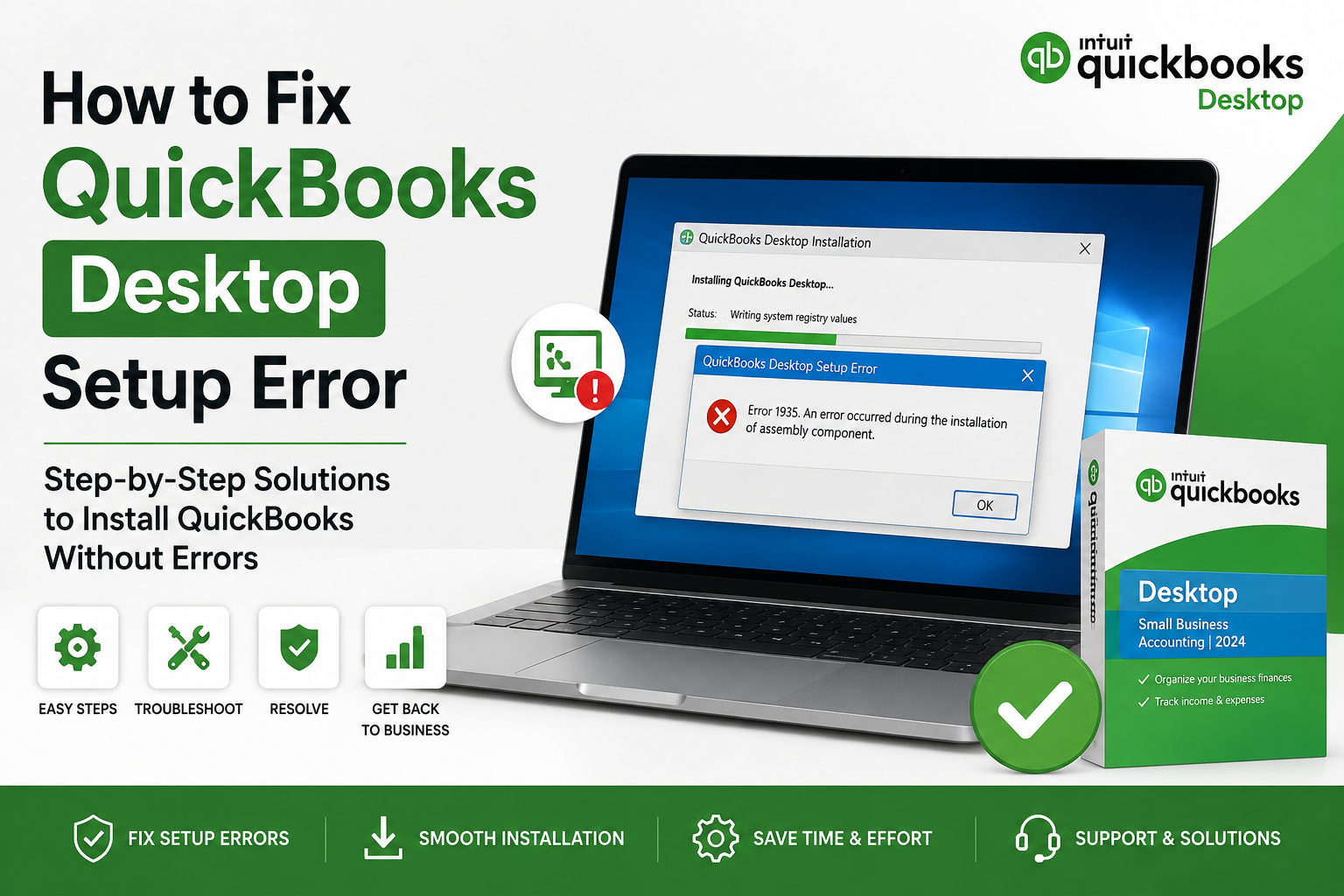
Installing QuickBooks Desktop should normally be a straightforward process, but sometimes the setup stops unexpectedly, displays an error message, freezes at a certain percentage, or simply refuses to complete. When QuickBooks Desktop won't install, the problem can be frustrating, especially if you need immediate access to your accounting data.
Installation failures can happen because of an outdated Windows environment, damaged installation files, conflicting applications, missing Microsoft components, insufficient permissions, security software, or remnants of an older QuickBooks installation. Fortunately, many installation problems can be identified and corrected without affecting your company files.
This guide explains the common reasons QuickBooks Desktop may not install and provides practical troubleshooting methods you can try one by one.
What Does “QuickBooks Desktop Won’t Install” Mean?
The phrase “QuickBooks Desktop won't install” can describe several different situations. For example, the installation program may not open at all, the setup may stop during installation, or QuickBooks may appear to install successfully but fail when you try to launch it.
Common symptoms include:
-
QuickBooks setup does not start.
-
Installation stops before completion.
-
The installer becomes unresponsive.
-
An error appears during installation.
-
QuickBooks closes while being installed.
-
The installation process repeatedly fails.
-
Windows displays a permission-related message.
-
QuickBooks cannot be opened after installation.
-
An older version interferes with the new installation.
-
Installation works on one computer but fails on another.
Understanding the exact symptom can make troubleshooting much easier.
Why QuickBooks Desktop Won’t Install
There isn't always one single reason behind an installation problem. Several Windows components and system conditions can affect QuickBooks Desktop installation.
1. Damaged Installation Files
If the QuickBooks installer was interrupted while downloading or the setup file became corrupted, the installation may fail before completion.
A damaged installer can produce unexpected errors or stop responding.
2. Windows Is Not Fully Updated
QuickBooks Desktop depends on Windows components and system services. If Windows has pending updates or important components are outdated, installation may not work correctly.
Restarting Windows after installing available updates can also be important because some updates do not become active until the system is restarted.
3. Previous QuickBooks Installation
An older QuickBooks installation can sometimes leave behind components that interfere with a new installation.
This is particularly common when QuickBooks was previously removed incorrectly or an earlier installation failed halfway through.
4. Insufficient Administrator Permissions
The QuickBooks installer may need permission to create folders, register components, and modify system settings.
If you're using a standard Windows account, the installer may not have the access it needs.
5. Security Software Interference
Antivirus or other security applications can occasionally interfere with software installation.
Security software may incorrectly identify an installation component as suspicious and prevent it from running.
6. Microsoft Components Are Damaged
QuickBooks Desktop can rely on Windows components such as Microsoft .NET Framework, Microsoft Visual C++ components, and MSXML.
If one of these components is damaged or improperly configured, installation may fail.
7. Insufficient Disk Space
A computer needs enough available storage for the installation process and temporary files.
Even when the QuickBooks program itself does not require a huge amount of space, low disk space can cause Windows installation processes to fail.
8. Windows User Profile Problems
Sometimes the issue is related to the Windows user profile rather than QuickBooks itself.
If installation fails under one Windows account, testing the installation with administrator permissions or another suitable Windows account can help determine whether the profile is involved.
How to Fix QuickBooks Desktop Won’t Install
Try the following solutions in order. After each major step, attempt the installation again.
Solution 1: Restart Your Computer
Before making complicated changes, restart Windows.
A restart can clear temporary processes, release locked files, and complete pending Windows operations.
After restarting:
-
Save your open work.
-
Close all applications.
-
Restart the computer.
-
Wait for Windows to load completely.
-
Try running the QuickBooks installer again.
If the installation still fails, continue with the next solution.
Solution 2: Run the Installer as Administrator
Windows permissions can prevent software from making required system changes.
To run the installer with elevated permissions:
-
Locate the QuickBooks installation file.
-
Right-click the installer.
-
Select Run as administrator.
-
Allow Windows to continue if User Account Control appears.
-
Follow the installation instructions.
This can resolve problems caused by restricted permissions.
Solution 3: Check Available Storage
Make sure your Windows drive has sufficient free space.
To check storage:
-
Open File Explorer.
-
Select This PC.
-
Look at the available space on your Windows drive.
-
Remove unnecessary temporary files if storage is very low.
-
Restart the computer.
-
Run the installer again.
Avoid deleting important accounting files just to create space. Clean up temporary or unnecessary files instead.
Solution 4: Install Pending Windows Updates
An outdated Windows environment can contribute to application installation problems.
Open Windows Settings and check for available updates.
After updates are installed:
-
Restart Windows.
-
Allow the computer to finish updating.
-
Sign in again.
-
Try installing QuickBooks Desktop.
If Windows reports that everything is already updated, move to the next troubleshooting method.
Solution 5: Download a Fresh QuickBooks Installer
If you have been using the same setup file repeatedly, the file itself could be damaged.
Instead of repeatedly launching the same installer, obtain a fresh installer from a trusted source and save it locally before running it.
Make sure you select the correct QuickBooks Desktop version and edition for your license.
Avoid downloading installation files from unknown websites because modified or unofficial installers can create additional security and compatibility problems.
Solution 6: Close Background Applications
Other programs running in the background can sometimes interfere with installation.
Before starting the setup:
-
Close QuickBooks.
-
Close web browsers.
-
Close Microsoft Office applications.
-
Close other software installers.
-
Save your work.
-
Temporarily reduce unnecessary background activity.
Then restart the installer.
If a particular security or system-management application is blocking the setup, follow that software's official instructions rather than making permanent security changes.
Solution 7: Use QuickBooks Tool Hub
QuickBooks Tool Hub is one of the useful troubleshooting utilities provided for QuickBooks Desktop problems. Intuit specifically includes an Installation Issues section for problems related to installing or uninstalling QuickBooks Desktop.
A general process is:
-
Close QuickBooks Desktop.
-
Download the latest QuickBooks Tool Hub from Intuit.
-
Install and open Tool Hub.
-
Select Installation Issues.
-
Choose the available installation troubleshooting option.
-
Allow the process to complete.
-
Restart your computer if prompted.
-
Try installing QuickBooks Desktop again.
Using the current Tool Hub version is preferable because troubleshooting utilities can be updated over time. Intuit currently recommends Windows 11 64-bit for the best Tool Hub experience.
Solution 8: Remove a Failed Installation Carefully
If QuickBooks installation failed previously, remnants of that installation may still exist.
A careful uninstall and reinstall can sometimes resolve the problem.
Start by checking:
Windows Settings → Apps → Installed apps
Look for the relevant QuickBooks Desktop installation and uninstall it if appropriate.
Restart Windows afterward.
Do not manually delete random folders or registry entries simply because they contain the word “QuickBooks.” Incorrect deletion can create additional Windows problems.
Solution 9: Repair Windows Components
If QuickBooks repeatedly fails during installation, Windows components may need attention.
Important components can include:
-
Microsoft .NET Framework
-
Microsoft Visual C++ Redistributable components
-
MSXML
-
Windows Installer services
Before modifying these components, create a Windows restore point when possible.
If a Windows component is corrupted, repairing it may allow the QuickBooks installer to complete normally.
Solution 10: Check Windows Installer Service
The Windows Installer service plays an important role in installing many desktop applications.
If the service is disabled or experiencing problems, software installation may fail.
You can check Windows services by:
-
Pressing Windows + R.
-
Typing
services.msc. -
Pressing Enter.
-
Finding Windows Installer.
-
Checking its current status.
Avoid changing service settings randomly. If the service is already functioning normally, move to another troubleshooting method.
Solution 11: Try a Clean Installation Approach
A clean installation approach may be useful when a previous QuickBooks installation has become damaged.
This process generally involves removing the problematic installation, restarting Windows, and reinstalling QuickBooks using a fresh installer.
The purpose is to eliminate conflicts created by damaged or incomplete installation components.
Because QuickBooks company files are separate from the application installation, uninstalling the program does not automatically mean your accounting data should be deleted. Nevertheless, always maintain a backup of important company files before performing major troubleshooting.
QuickBooks Desktop Installation Stops at a Specific Point
Sometimes the installer starts normally but freezes at a particular stage.
Possible causes include:
-
Windows processes running in the background.
-
Security software interference.
-
Damaged installation files.
-
Missing Windows components.
-
A previous QuickBooks installation.
-
Permission restrictions.
-
Low system resources.
First restart Windows and run the installer as administrator.
If the problem continues, use the QuickBooks installation troubleshooting tools and then attempt a fresh installation.
QuickBooks Desktop Installation Error After an Update
An update to Windows or another application can occasionally change system components that QuickBooks depends on.
If QuickBooks stopped installing after a Windows update:
-
Restart Windows.
-
Check whether additional Windows updates are available.
-
Confirm available disk space.
-
Run the QuickBooks installer as administrator.
-
Use QuickBooks Tool Hub's installation troubleshooting options.
-
Try a fresh installer.
Avoid immediately rolling back important Windows updates unless you have a specific reason and understand the consequences.
QuickBooks Desktop Won’t Install on a New Computer
Installing QuickBooks on a new computer can be different from repairing an existing installation.
Before beginning:
-
Confirm your QuickBooks version.
-
Keep your license information available.
-
Verify Windows compatibility.
-
Make sure enough storage is available.
-
Download the correct installation package.
-
Keep your company file backup available.
Install the software first and then restore or open your company data using the appropriate QuickBooks process.
If you're moving QuickBooks from another computer, don't simply copy the installed program folder. QuickBooks Desktop requires proper installation because Windows components and application registrations need to be configured correctly.
What If QuickBooks Installs but Won’t Open?
Sometimes the installation itself finishes, but QuickBooks refuses to launch.
This is a slightly different problem.
Possible causes include:
-
Damaged program files.
-
Windows compatibility issues.
-
User permission problems.
-
Company file problems.
-
Background processes.
-
Previous QuickBooks components.
Try opening QuickBooks as administrator first.
If the program still doesn't launch, use the appropriate QuickBooks troubleshooting tools rather than repeatedly reinstalling the software.
Protect Your QuickBooks Company Files
When troubleshooting an installation issue, your accounting data should remain a priority.
Before making significant changes:
-
Locate your company file.
-
Create a backup.
-
Store the backup in a safe location.
-
Avoid deleting files unless you know exactly what they are.
-
Keep your original backup separate from troubleshooting copies.
Remember that the QuickBooks application and your company data serve different purposes. An installation problem does not necessarily mean your accounting data is damaged.
Common Mistakes to Avoid
When QuickBooks Desktop won't install, users sometimes make the problem worse by trying too many changes at once.
Avoid these mistakes:
Downloading From Untrusted Websites
Use trusted sources for QuickBooks installation files. Unofficial downloads may be outdated or modified.
Repeatedly Running the Same Damaged Installer
If the installer itself is corrupted, running it repeatedly will not fix the underlying problem.
Deleting QuickBooks Folders Manually
Don't randomly remove folders from Program Files, AppData, or Windows directories.
Disabling Security Permanently
Security software is important. If it appears to interfere with an installation, use the security product's recommended temporary troubleshooting process rather than leaving protection disabled.
Ignoring Windows Updates
An outdated operating system can contribute to compatibility problems.
Forgetting Data Backups
Always protect important accounting data before performing major software repairs.
How to Prevent Future QuickBooks Installation Problems
A few simple habits can reduce installation issues in the future.
Keep Windows Updated
Install important Windows updates and restart your computer when required.
Keep Installation Files Organized
Store legitimate QuickBooks installation files and license information securely.
Maintain Company File Backups
Regular backups make software troubleshooting much less stressful.
Avoid Unnecessary System Modifications
Don't modify Windows registry entries, services, or system folders unless you understand exactly what you're changing.
Use Official Troubleshooting Tools
For QuickBooks Desktop installation problems, use current troubleshooting utilities and documentation from trusted sources.
When Should You Get Technical Help?
If QuickBooks Desktop still won't install after trying the standard troubleshooting methods, the issue may require more detailed investigation.
Consider getting technical assistance when:
-
Installation fails repeatedly.
-
Multiple QuickBooks versions conflict.
-
Windows components appear damaged.
-
The installer produces a specific recurring error.
-
QuickBooks worked previously but stopped after a system change.
-
Installation fails only under one Windows user account.
-
The computer has broader software-installation problems.
When asking for assistance, provide the exact error message and explain what happened immediately before the problem appeared. This information can significantly reduce troubleshooting time.
Frequently Asked Questions
Why won't QuickBooks Desktop install on my computer?
The problem can be caused by damaged installation files, Windows compatibility issues, permissions, missing components, security software interference, insufficient storage, or remnants of an older installation.
Can I fix QuickBooks installation problems without reinstalling Windows?
Yes. Most QuickBooks installation problems do not require reinstalling Windows. Start with basic checks, administrator permissions, Windows updates, a fresh installer, and QuickBooks installation troubleshooting tools.
Will uninstalling QuickBooks delete my company file?
The QuickBooks application and company data are separate. However, you should always back up your company files before uninstalling or performing major troubleshooting.
What should I do if QuickBooks setup freezes?
Restart Windows, close unnecessary applications, run the installer as administrator, and try the installation again. If the issue continues, use QuickBooks Tool Hub's Installation Issues troubleshooting options.
Why does QuickBooks install on another computer but not mine?
This usually indicates that something specific to the affected computer may be interfering with installation. Windows configuration, permissions, installed components, security software, or previous QuickBooks files can all be possible factors.
Should I download QuickBooks from a third-party website?
It is safer to obtain QuickBooks installation software from trusted, legitimate sources. Avoid unknown websites offering modified or suspicious installers.
Final Thoughts
When QuickBooks Desktop won't install, there is usually a specific system or installation condition preventing the setup from completing. The best approach is to troubleshoot systematically instead of repeatedly running the same installer.
Start with simple steps such as restarting Windows, checking available storage, installing pending Windows updates, running the setup with administrator privileges, and obtaining a fresh installation file. If those steps don't help, QuickBooks Tool Hub's Installation Issues section can provide additional troubleshooting for installation and uninstall problems.
Most importantly, protect your accounting data before making major changes. A careful troubleshooting process can help you get QuickBooks Desktop installed successfully while keeping your company files safe.

 English
 Arabic
 French
 Portuguese
 Deutsch
 Turkish
 Dutch
Dutch
 Italiano
 Russian
 Romaian
 Portuguese (Brazil)
 Greek
Greek
